
 English


2025/04/08Views(13448)Reviews(0)
I. Target Audience
Operators, Customer Service
II. Feature Introduction
Amazon email messages, especially buyer messages, can arrive at any time. To ensure timely responses or faster response speeds, using a mobile phone is an excellent choice.
The SellerSpace Mini Program now supports directly replying to store email messages and categorizing different types of emails with tags.
Its operation is almost identical to the web version of [Email Messages].
Web Version - Email Messages Tutorial: Click to View
III. Usage Scenarios
- Process email messages via mobile phone
IV. Operation Guide
To process emails through the SellerSpace Mini Program, you first need to bind a dedicated email address on the web version and complete 3 pre-settings.
Detailed operation tutorial: Click to View (First 4 steps of the Operation Guide)
1. Viewing Emails
① Finding Emails
Example: Finding "SellerSpace K-Germany marketplace, Amazon emails from the last 30 days"
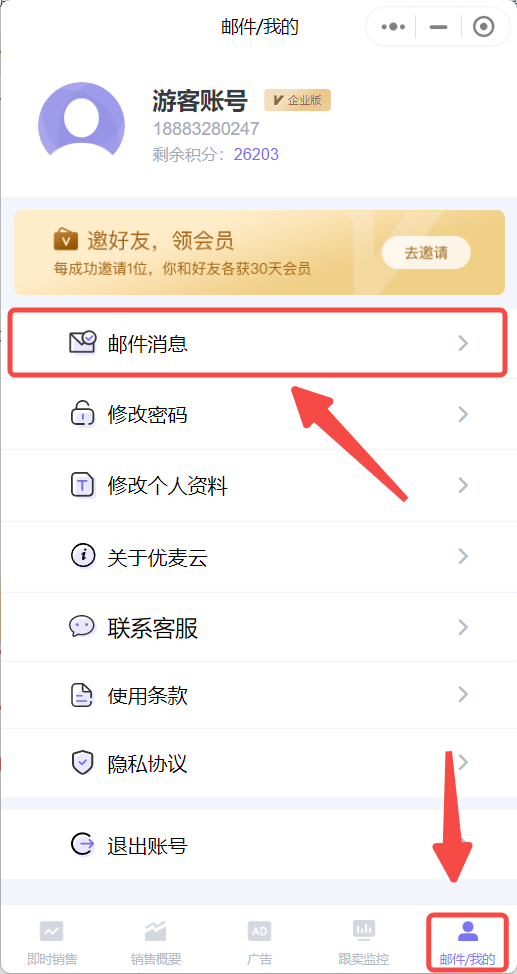
Enter the SellerSpace WeChat Mini Program, select [Mail/My] in the bottom right corner, then select [Email Messages] to enter the email management page.
 +
+
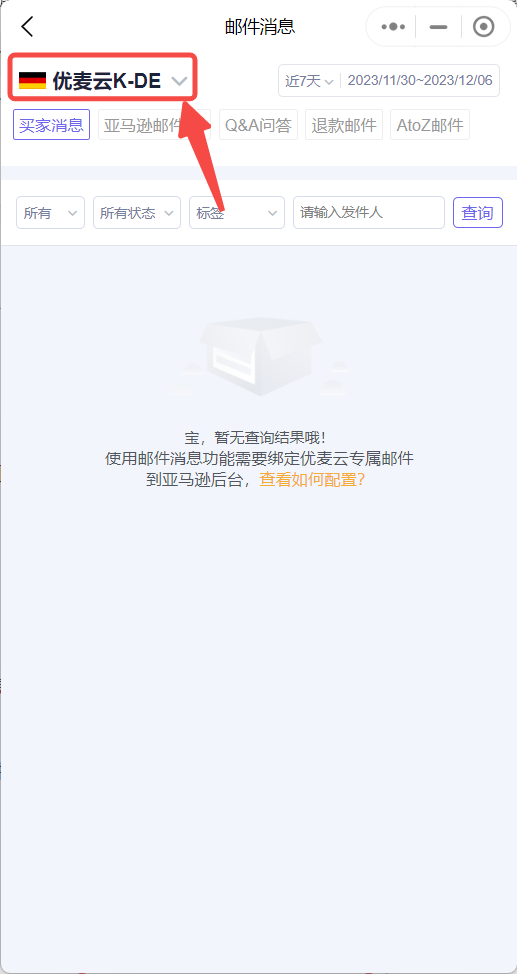
Enter the "Email Messages" page,
First, select the marketplace.
We want to see emails from the German marketplace, so select Germany.
 +
+
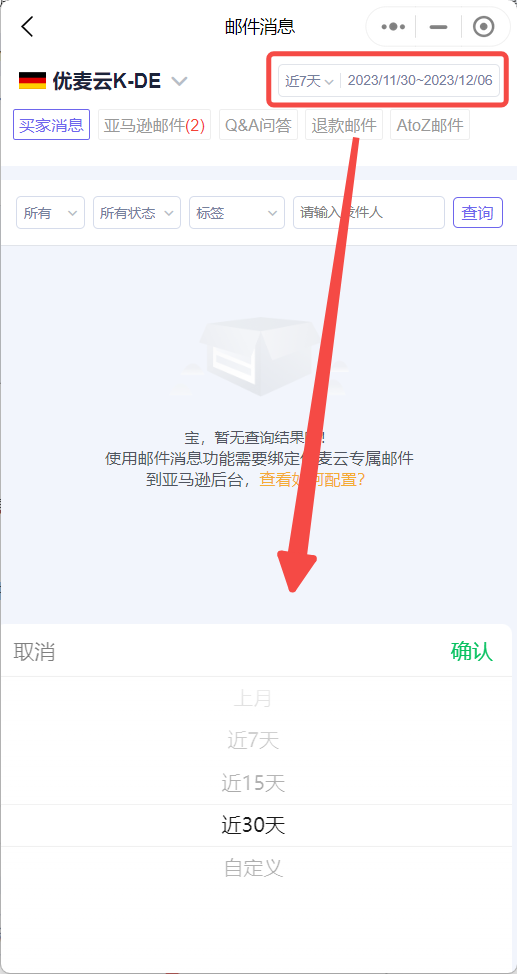
Next, select the time period.
The system defaults to displaying email messages from the last 7 days. Click the time in the upper right corner to select other time periods.
We want to view emails from the last 30 days, so select [Last 30 Days].
 +
+
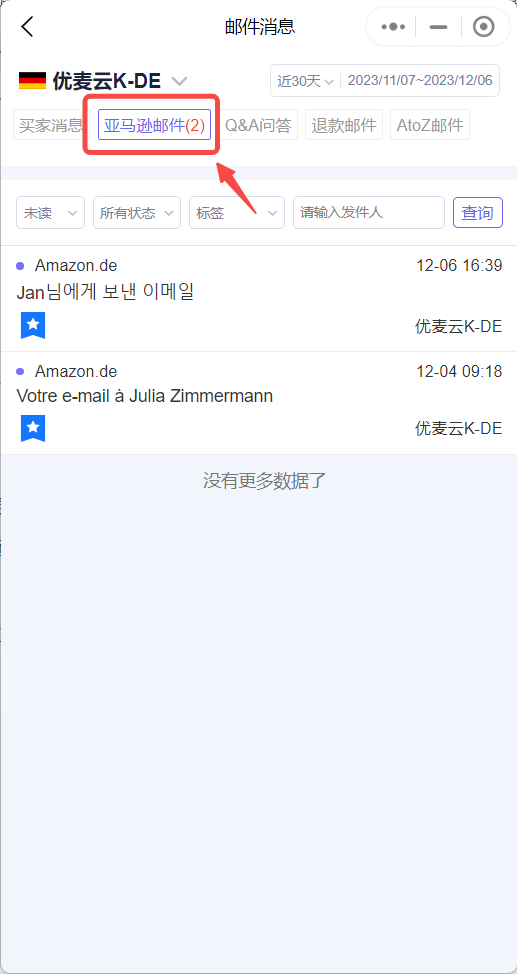
Next, select the email type.
SellerSpace categorizes retrieved emails into 5 types: Buyer Messages, Amazon Emails, Q&A, Refund Emails, and A-to-z Claim Emails.
Click the corresponding type name to view emails under that type.
We want to view [Amazon Emails] this time, so click to enter.
 +
+
② Email Details
In addition, we can further filter emails through the filter bar to find emails more precisely.
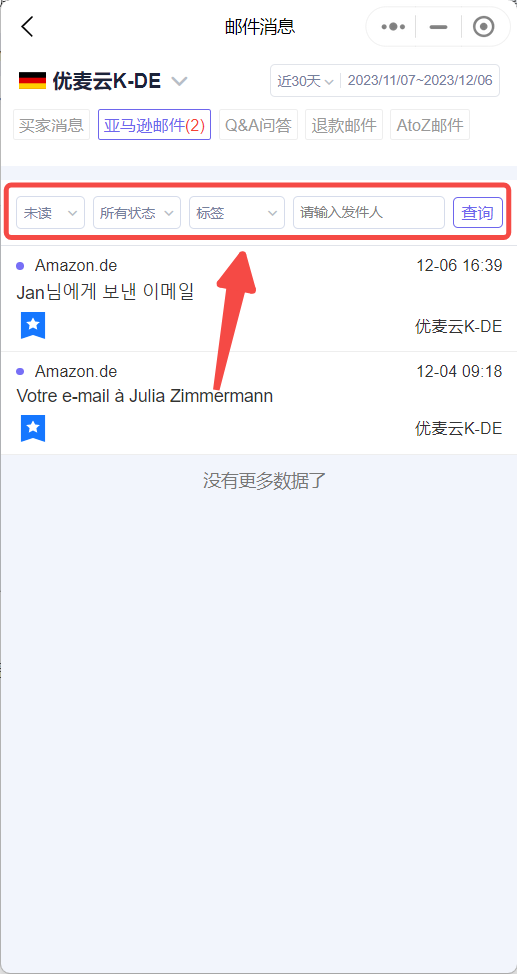 +
+
Click on an email to enter and view the email details.
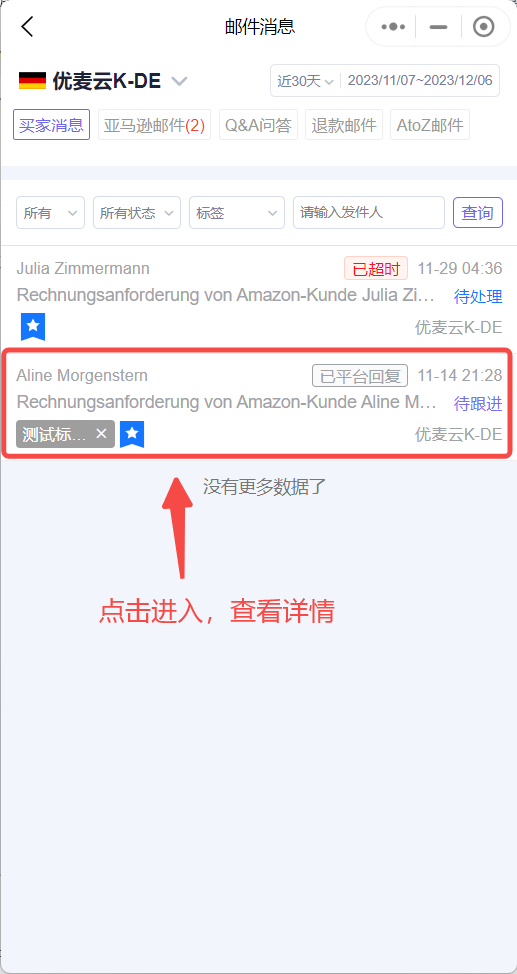 +
+
Email Details:
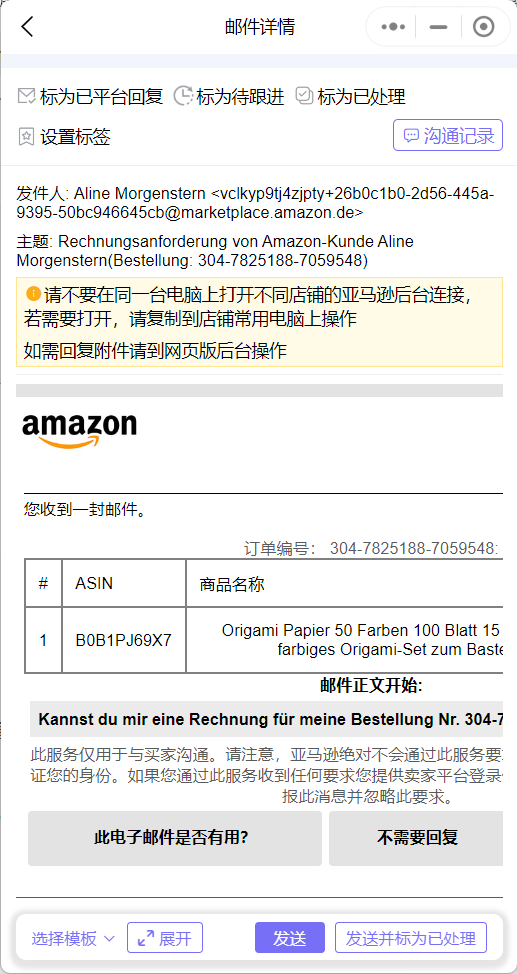 +
+
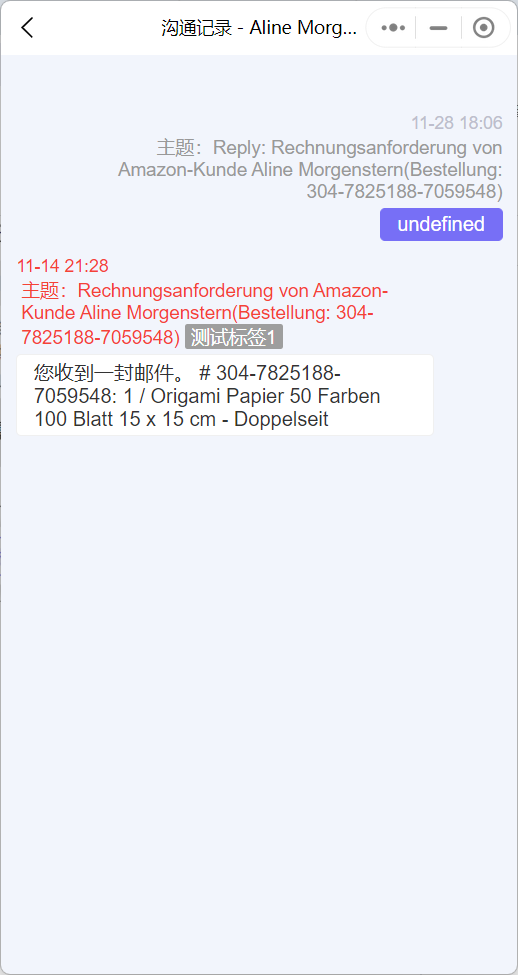
③ Communication History
On the email details page, we can also further view the communication history of this email to help us understand the progress of the conversation.
Click [Communication History] in the upper right corner to view it.
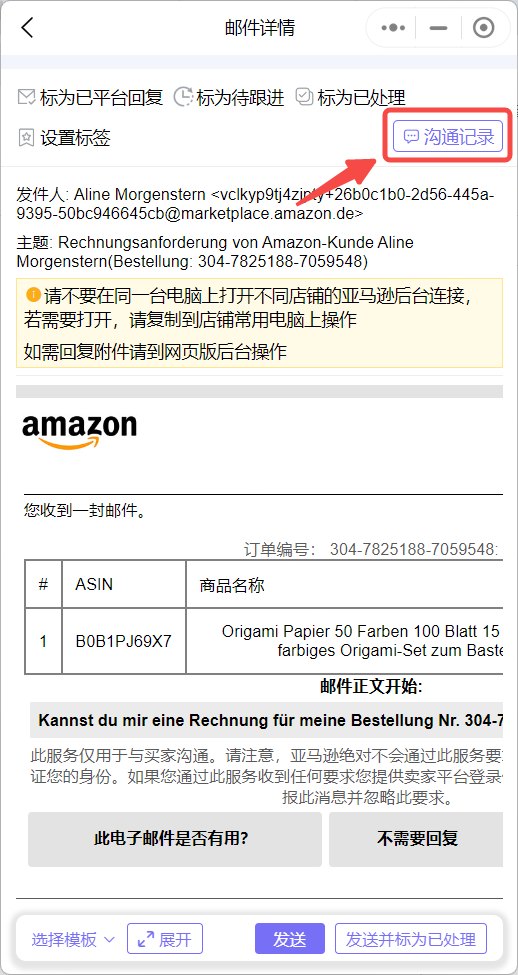 +
+
Communication History Details:
 +
+
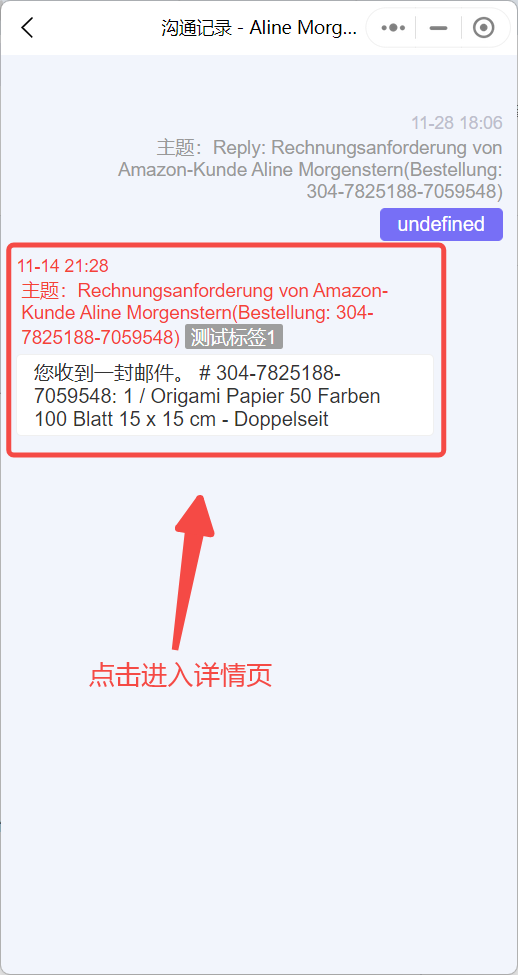
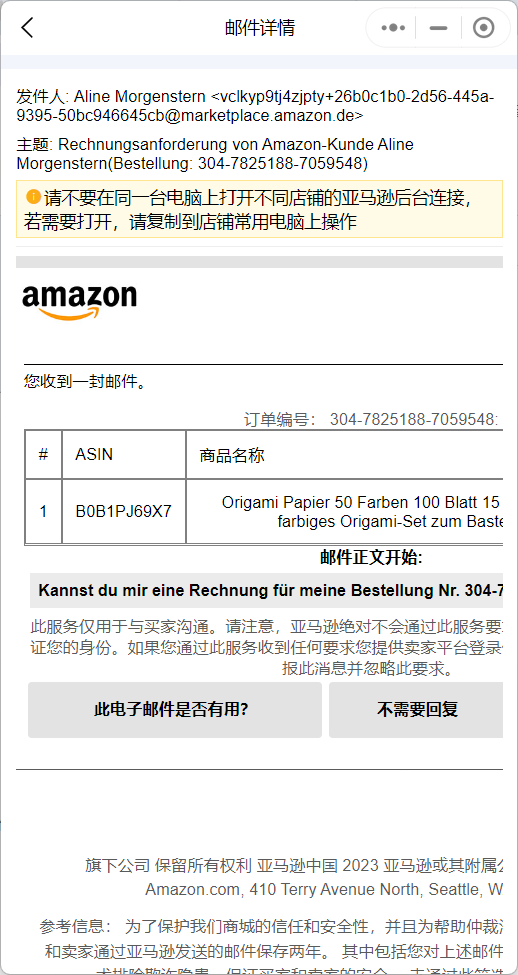
Click on a record to further view the details of that record.
 +
+
Communication Email Details:
 +
+
2. Replying to Emails
In addition to finding emails, we can also directly reply to emails via mobile phone.
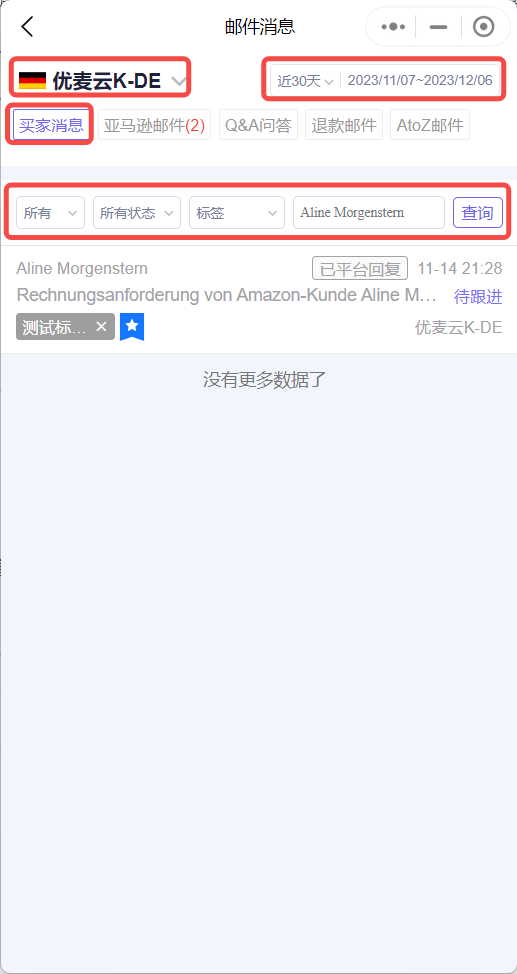
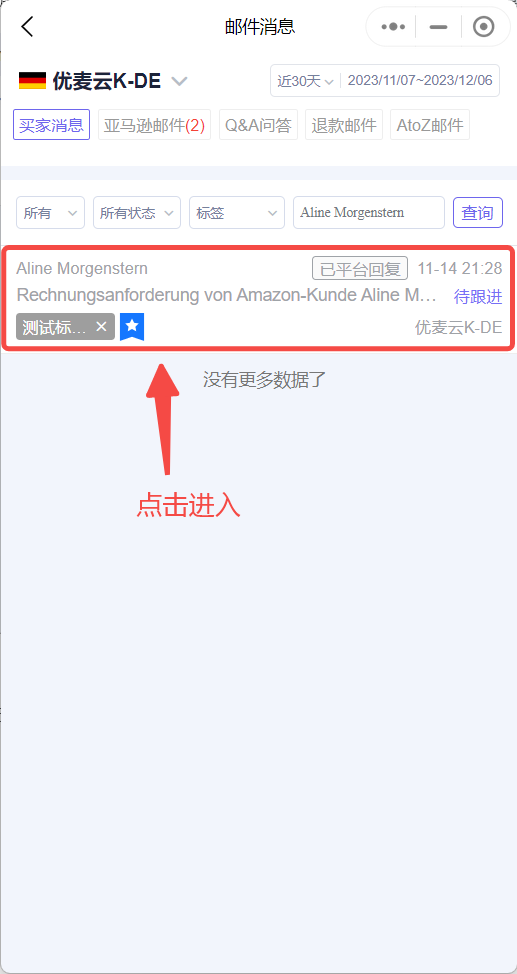
Example: Replying to an email from "SellerSpace K-Germany marketplace, last 30 days, Buyer Messages, Sender: Aline Morgenstern".
Enter the Email Messages page, select Marketplace: SellerSpace K-Germany, Time Period: Last 30 days; Email Type: Buyer Messages, and further filter for emails from Sender: Aline Morgenstern.
 +
+
After finding it, click on the email to enter the email details page.
 +
+
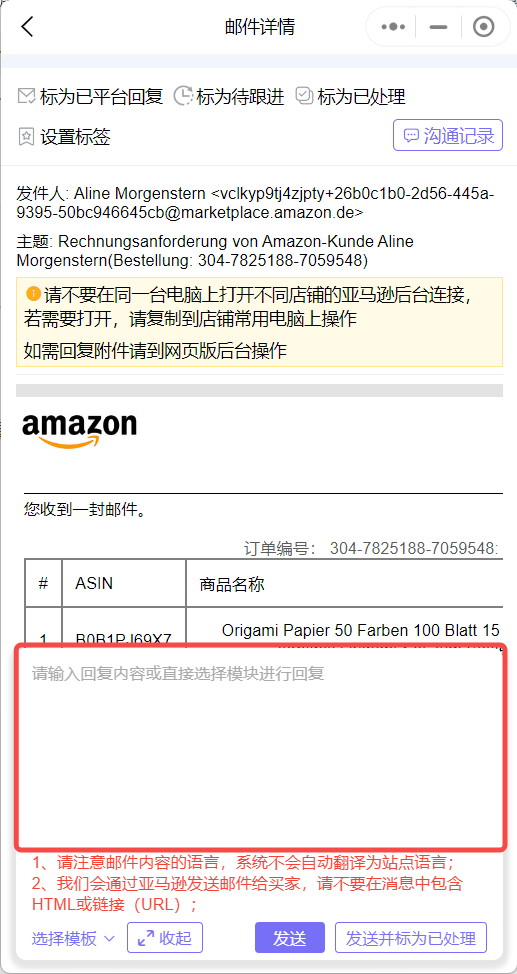
Enter the "Email Details" page,
We can directly edit the email content in the reply box to reply.
When editing the reply content, please note:
- The system does not automatically translate to the marketplace language. Please reply using the corresponding marketplace language.
- We send emails to buyers through Amazon. Please do not include HTML links (URLs) in your replies.
- It is recommended not to include sensitive words, such as: review, feedback, contact US, etc.
 +
+
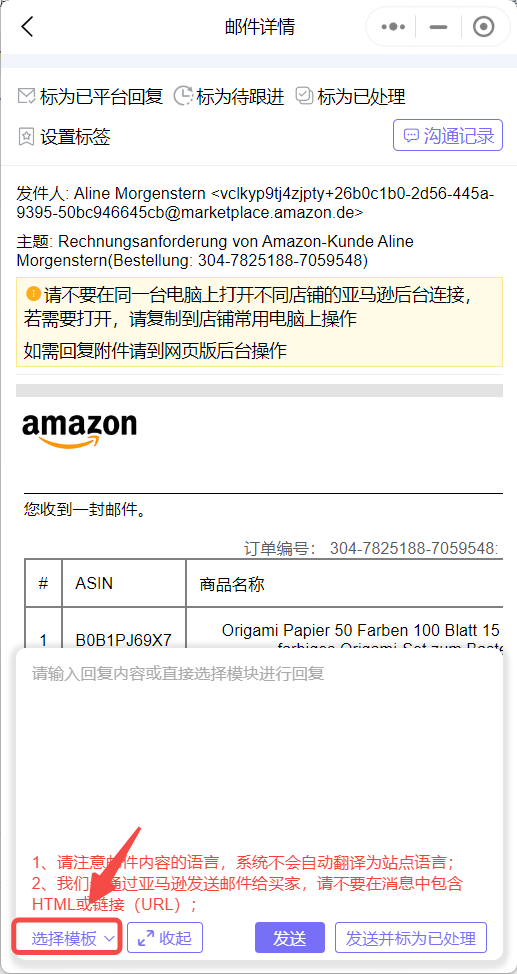
Alternatively, you can directly select a pre-set email template. How to pre-set email templates? Click to view
Click [Select Template] in the lower left corner and select the corresponding template.
After selection, the template content will be automatically filled into the reply box. We can directly edit and confirm.
Please note: Replying to emails via the Mini Program does not currently support uploading attachments. The web version supports attachments.
 +
+
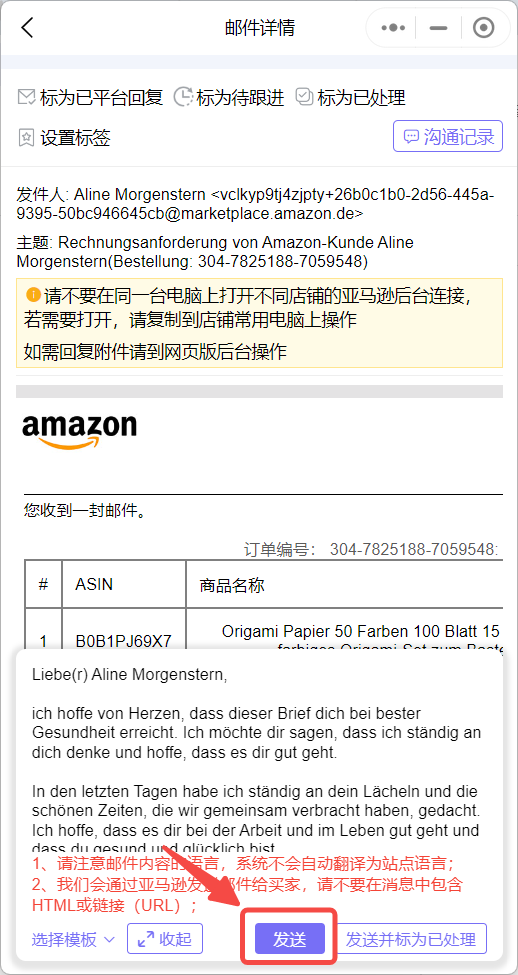
After confirming that all information is correct, click [Send].
 +
+
3. Marking Emails
In addition to viewing and replying to emails, we can also mark emails through the mobile Mini Program to categorize and manage emails.
There are also 4 types of markings: Replied by Platform, To Follow Up, Processed, and Tags.
And their operations are largely similar.
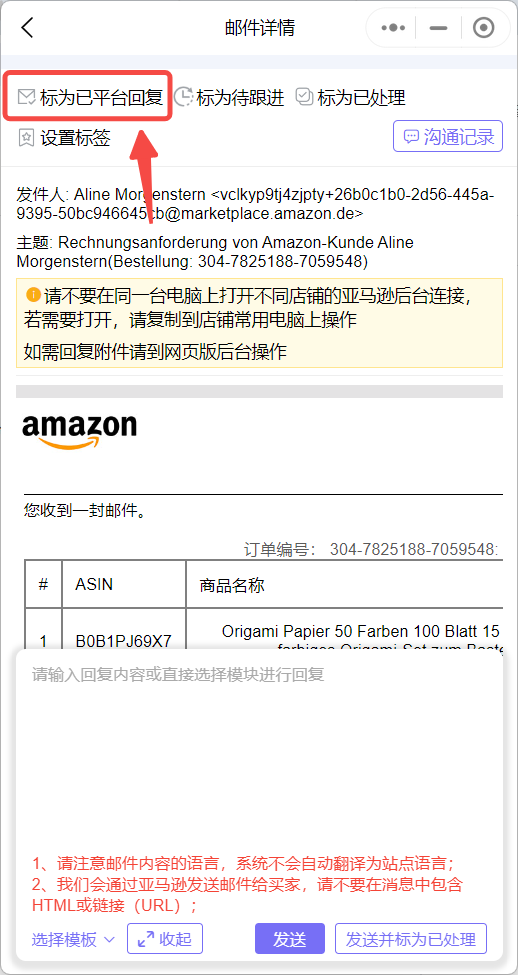
① Mark as Replied by Platform
Enter the "Email Details" page,
Click [Mark as Replied by Platform] to mark with one click.
 +
+
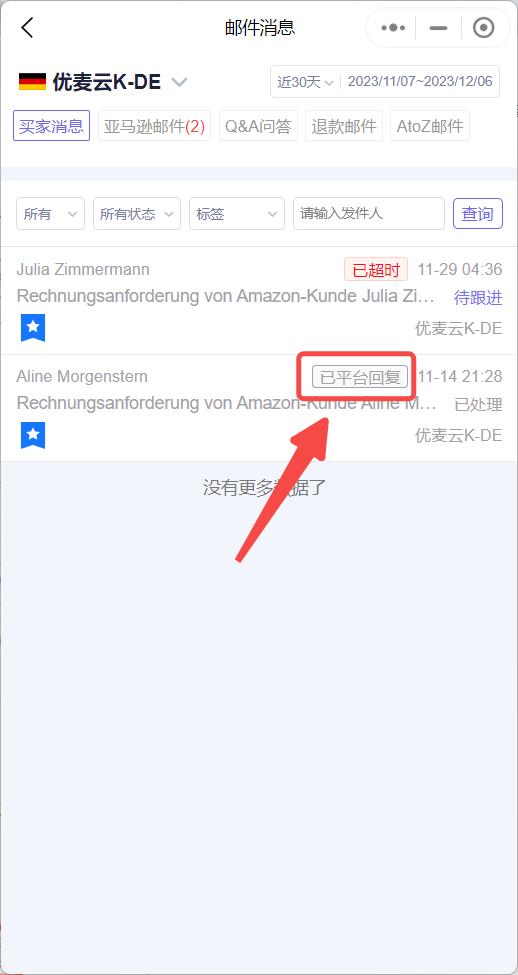
After marking, in the email list, the time-sensitive area of the email will be updated to [Replied by Platform].
 +
+
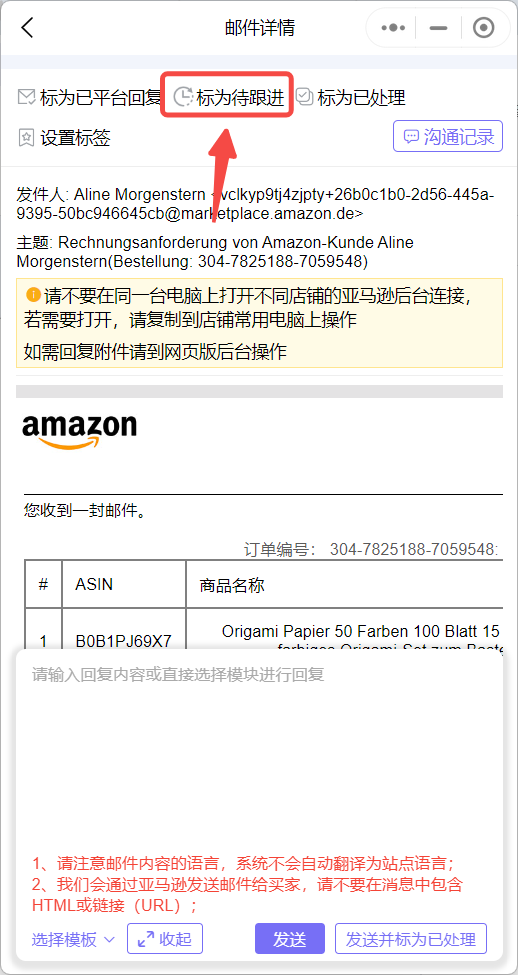
② Mark as To Follow Up
Enter the "Email Details" page,
Click [Mark as To Follow Up] to mark with one click.
 +
+
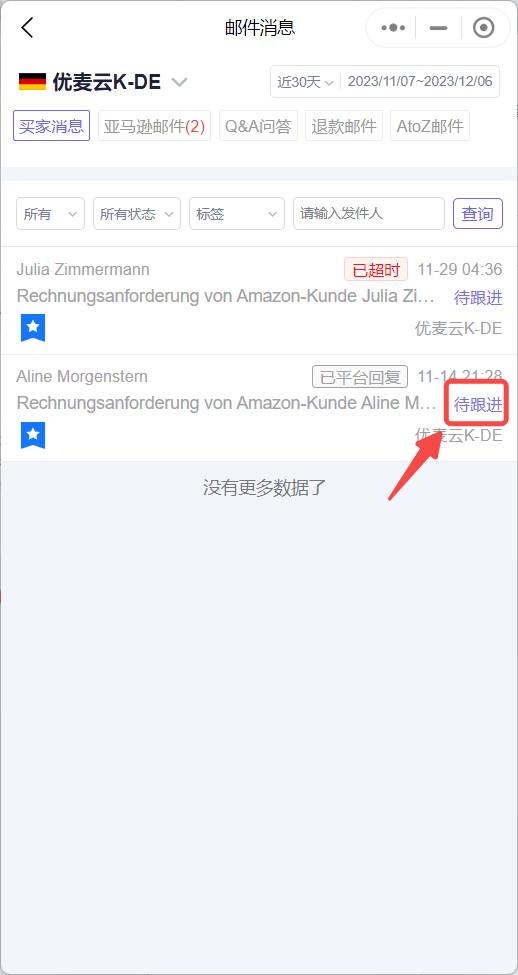
After marking, in the email list, the processing status area of the email will be updated to [To Follow Up].
 +
+
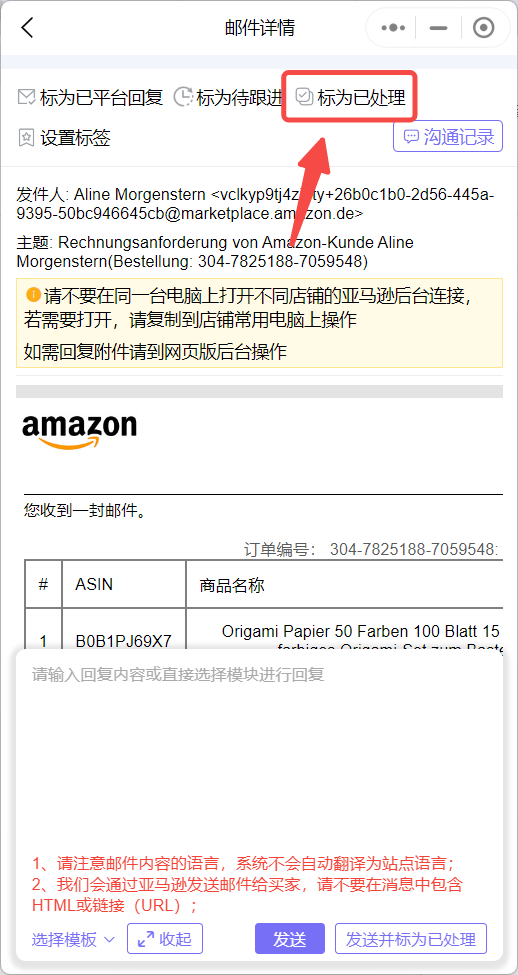
③ Mark as Processed
Enter the "Email Details" page,
Click [Mark as Processed] to mark with one click.
 +
+
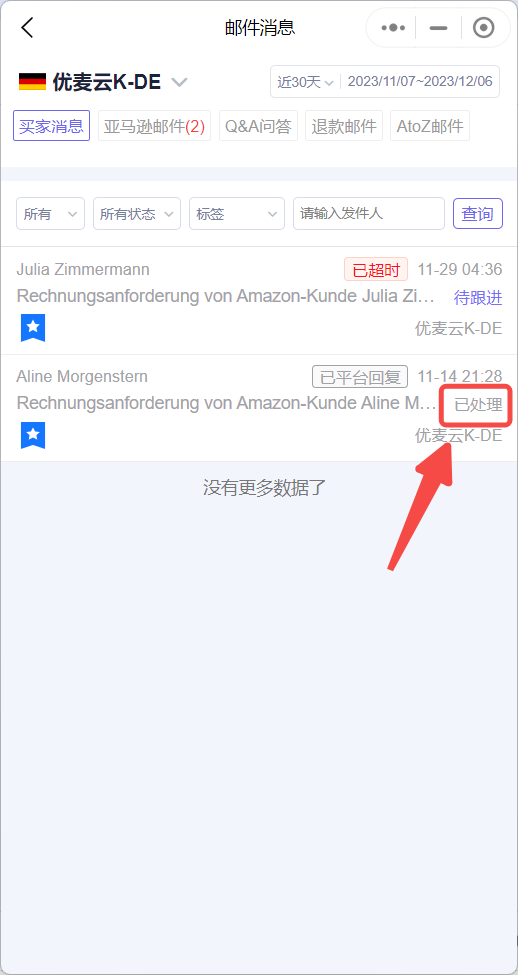
After marking, in the email list, the processing status area of the email will be updated to [Processed].
 +
+
④ Setting Tags
In addition to marking the processing status of emails, we can also set different tags for emails. A single email can have up to 2 tags.
There are 2 entry points for setting tags: the email details page + the email list page. The setting methods are basically the same.
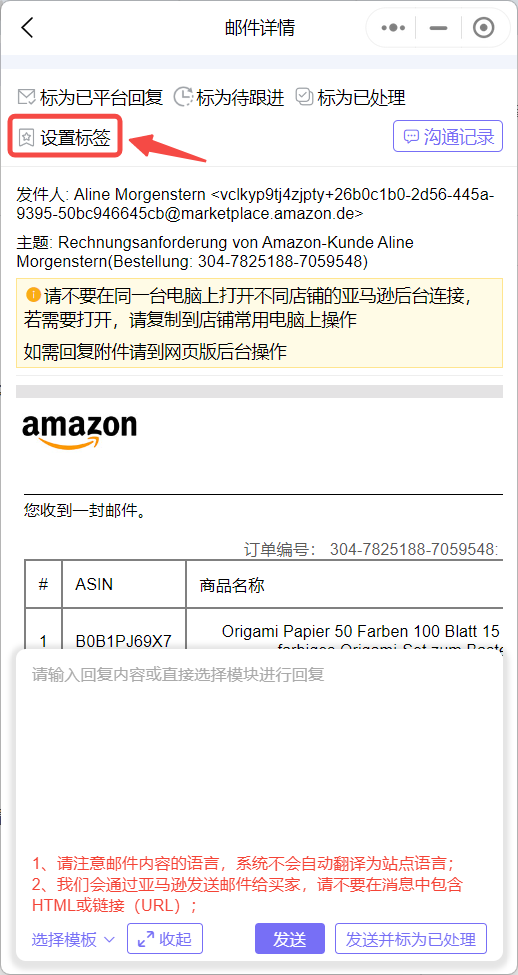
Email Details Page:
Enter the email details page, click [Set Tags] to enter the settings page.
 +
+
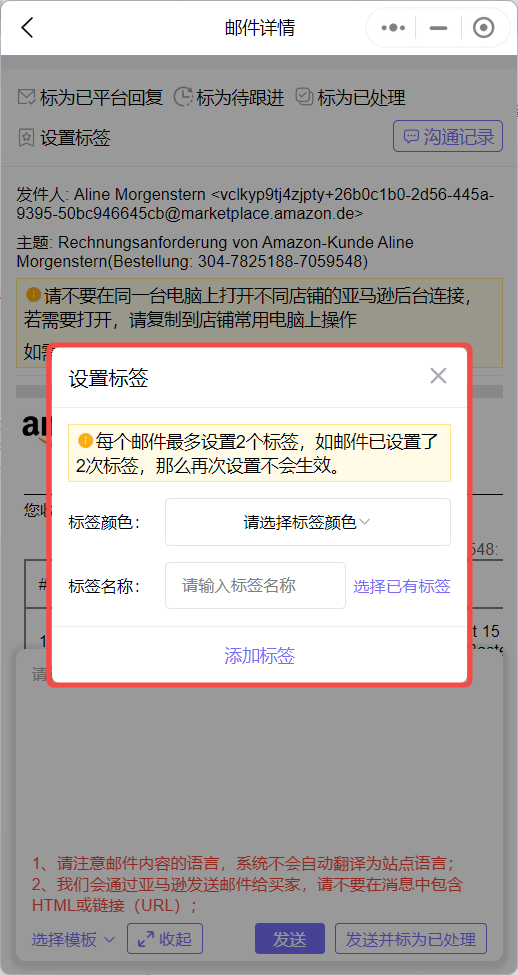
Select a tag color, set or select an existing tag name, and click [Add Tag] after confirming everything is correct to complete the setting.
 +
+
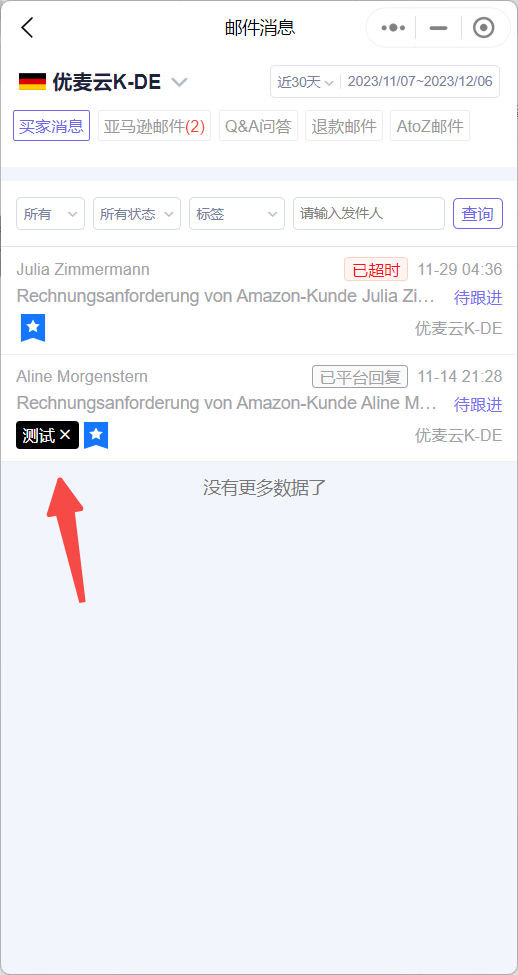
After setting, the tag will be displayed in the corresponding email in the email list page on the left.
 +
+
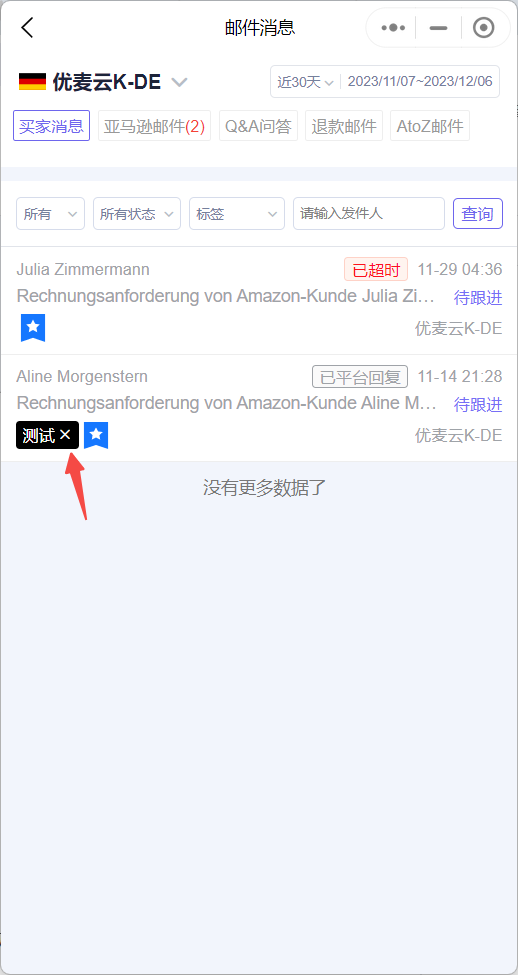
Hover the mouse over the tag and click [×] to delete the tag with one click.
 +
+
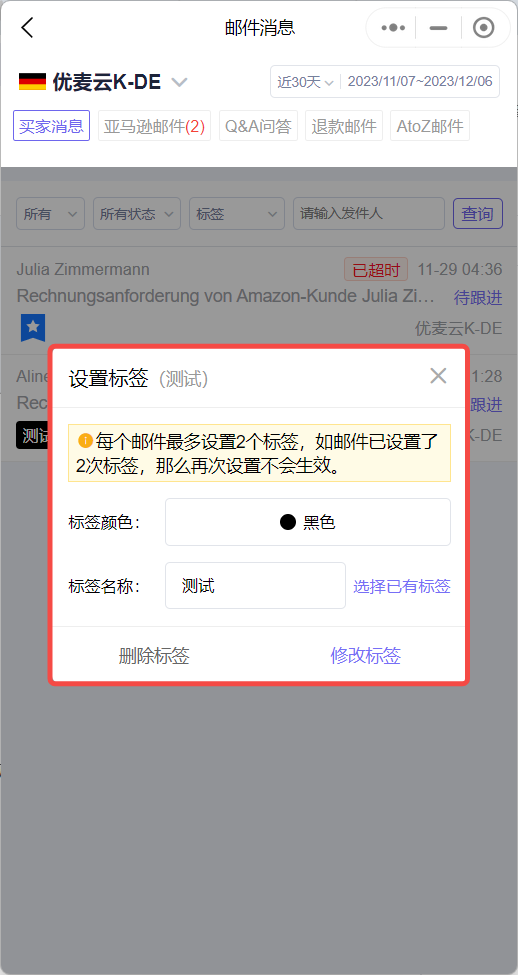
Click the tag name to enter the tag settings page to update the tag's color or name.
 +
+
Email List Page:
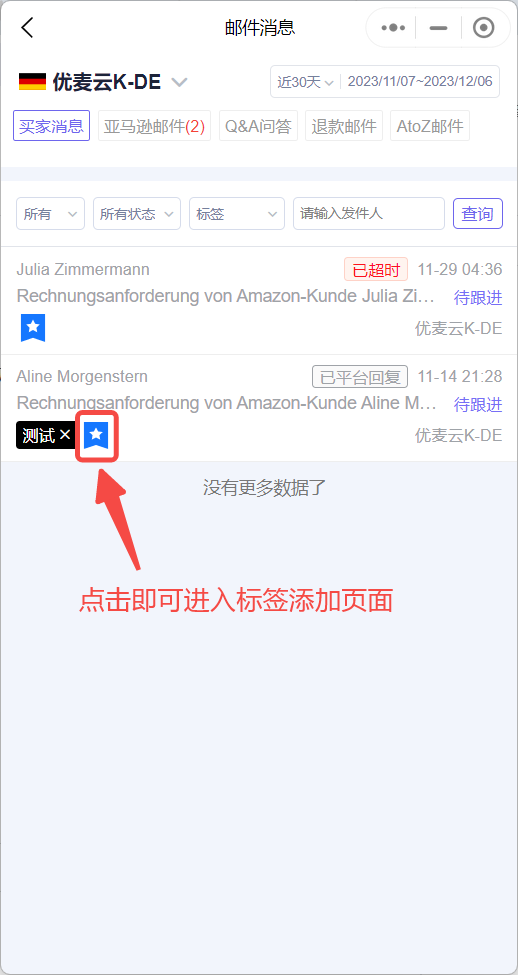
The setting method is basically the same as the operation on the "Email Details Page".
When the setting limit (2 tags) is reached, this entry point will disappear. It will reappear after deleting a tag, making it convenient to add new tags.
 +
+
