
 English


2025/07/14Views(27549)Reviews(0)
I. Target Audience
Operators
II. Feature Introduction
SellerSpace Extension's Detail Page Ranking Monitor, similar to the Keyword Rank Monitor, automatically tracks the ad placement rankings on your own or your competitors' product detail pages. It also meticulously records products and ranking details that have appeared within the top 3 pages of ad placements on those product detail pages. This helps sellers more deeply analyze and optimize the performance of Sponsored Product Ads on detail pages, ultimately improving advertising ROI.
III. Usage Scenarios
- Automatically monitor ad placement ranking details on product detail pages and record ranking trends;
- Track the performance of Sponsored Product Ads on detail pages to determine whether to adjust ad campaign strategies;
- Analyze ad ranking trends, the number of times entering the top 3 pages and their proportion, to further optimize ad campaigns;
- Analyze and judge the performance of competitors around ad placements, and optimize your own advertising strategies;
- View product detail pages of related products to confirm whether your keyword embedding and category selection are correct.
IV. Operation Guide
Detail Page Ranking Monitor and Keyword Rank Monitor, one monitors ad placement rankings on product detail pages, and the other monitors rankings on keyword search results pages. The installation and configuration operations are basically the same, only the monitoring objects added are different.
1. Installation and Setup
To use the Keyword Rank Monitor feature, you need to install the SellerSpace extension in the browser used to access the Amazon front-end website.
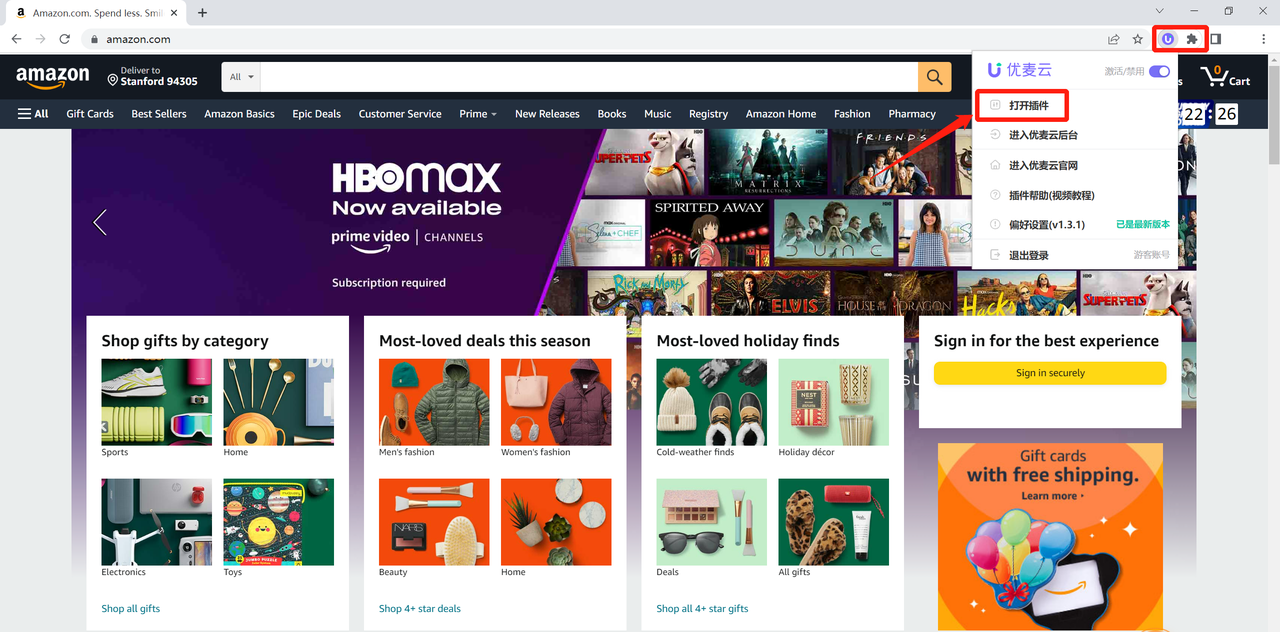
After successful installation, click the extension icon in the upper right corner of the browser, select [Open Extension], and log in to your SellerSpace account;
Special Note: When using the Detail Page Ranking Monitor feature, you also need to keep the browser and extension running at the same time. If you close the browser or the extension logs out, data fetching will stop immediately.
 +
+
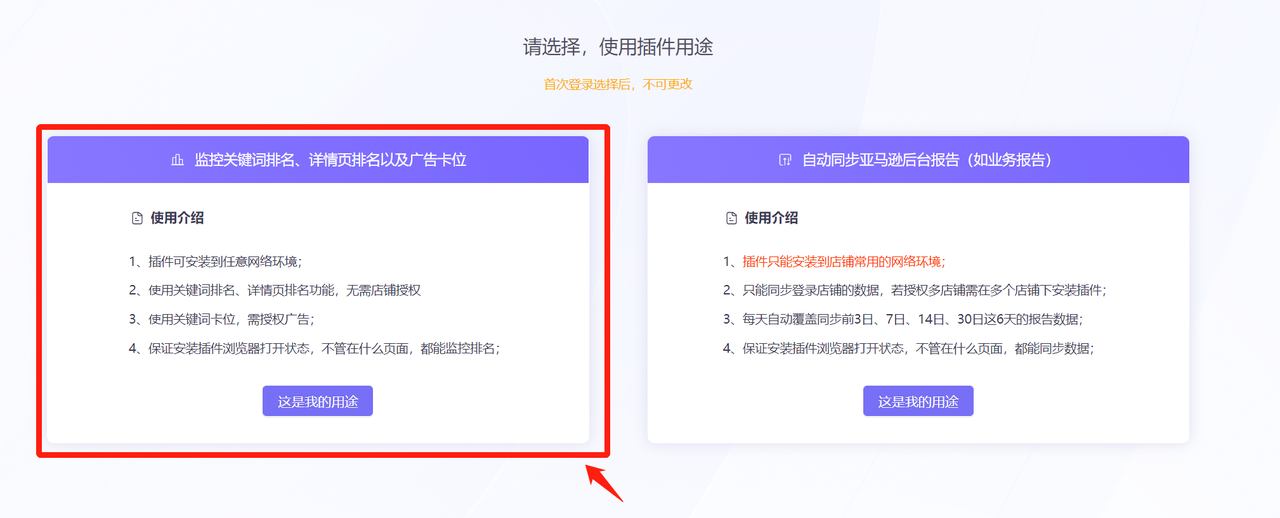
When using it for the first time, you need to select the extension purpose,
Select [Monitor Keyword Ranking, Detail Page Ranking, and Ad Positioning] to enter the feature page;
 +
+
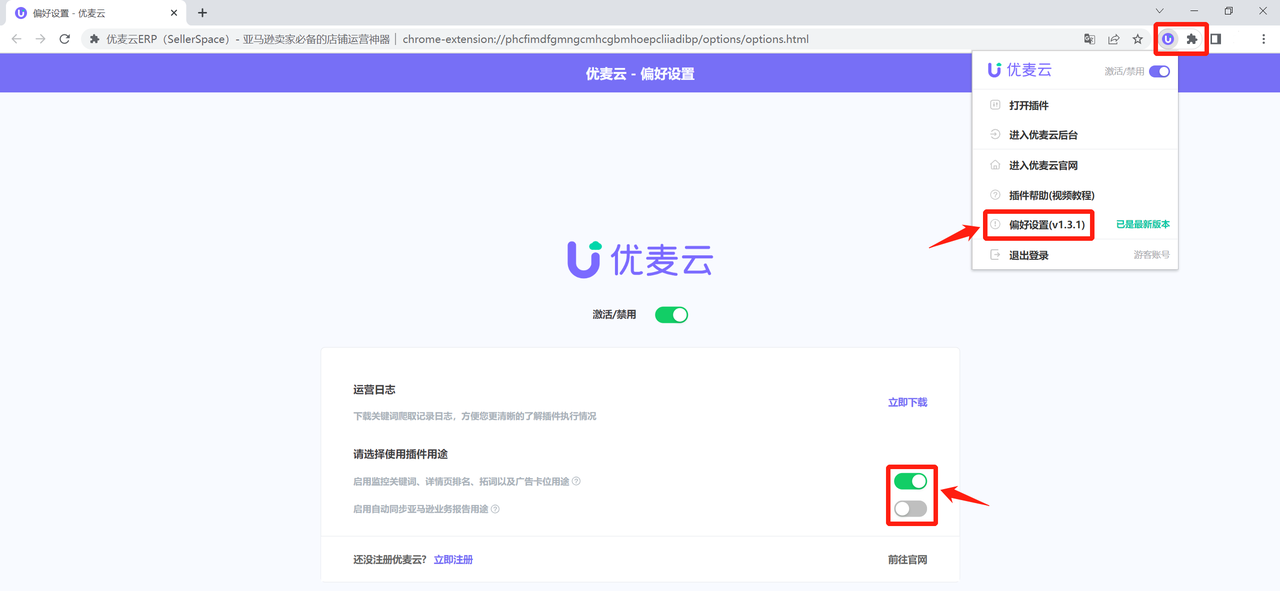
The extension purpose can be switched at any time in the [Preferences] feature.
 +
+
2. Configure Monitoring
To better use the Detail Page Ranking Monitor feature, you need to complete the following steps.
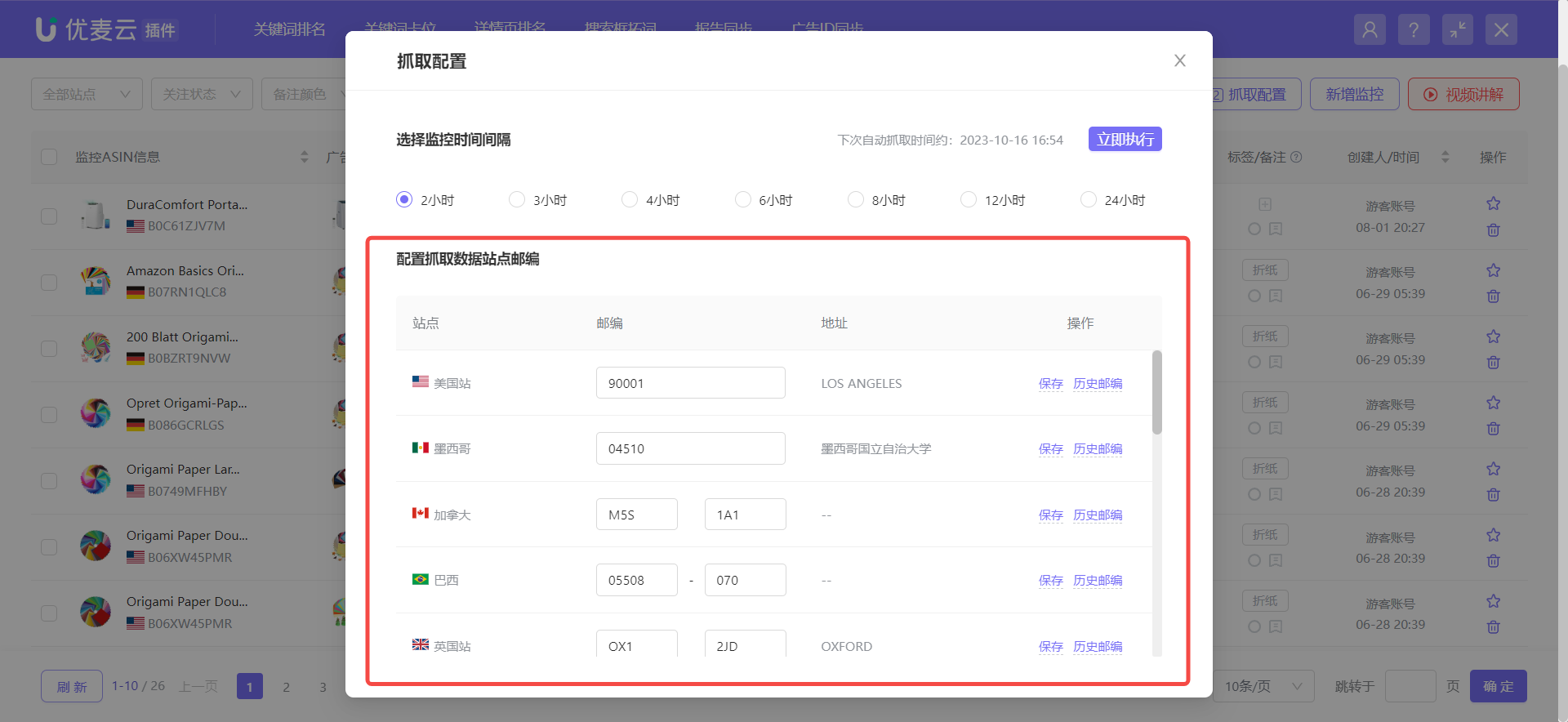
2.1 Configure Fetching Data Marketplace Zip Code (Logic is the same as Keyword Ranking)
The marketplace zip code is equivalent to the buyer's address.
Because when viewing the same product detail page in different regions, the related ad product results displayed on the page will be different. Therefore, you need to fix the marketplace zip code to match specific results.
It is recommended to set the corresponding zip code address by viewing your backend's peak order area. You can also modify the marketplace zip code at any time.
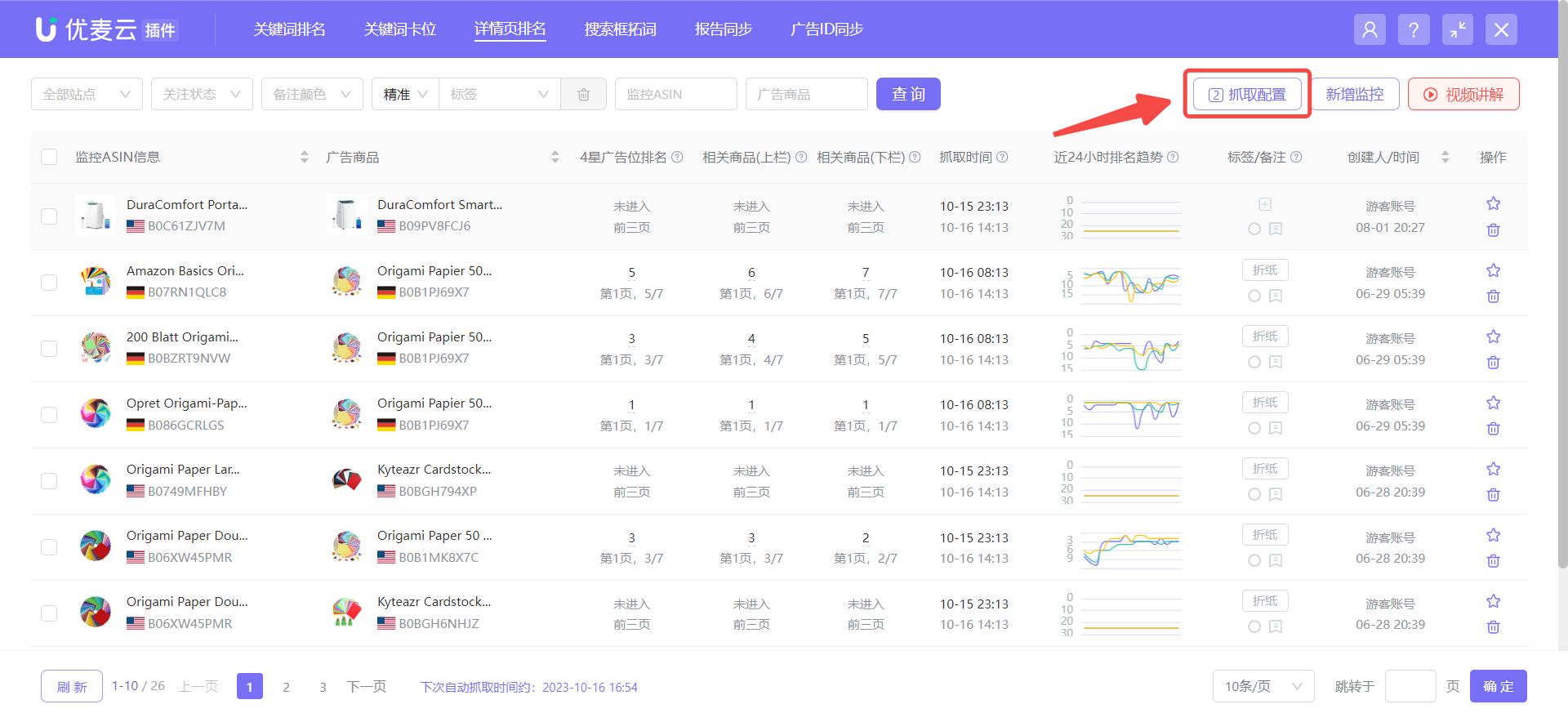
Click [Fetching Settings] to enter the configuration page.
 +
+
Enter the zip code of the corresponding marketplace and click [Save].
 +
+
2.2 Select Monitoring Interval Time (Same as Keyword Ranking)
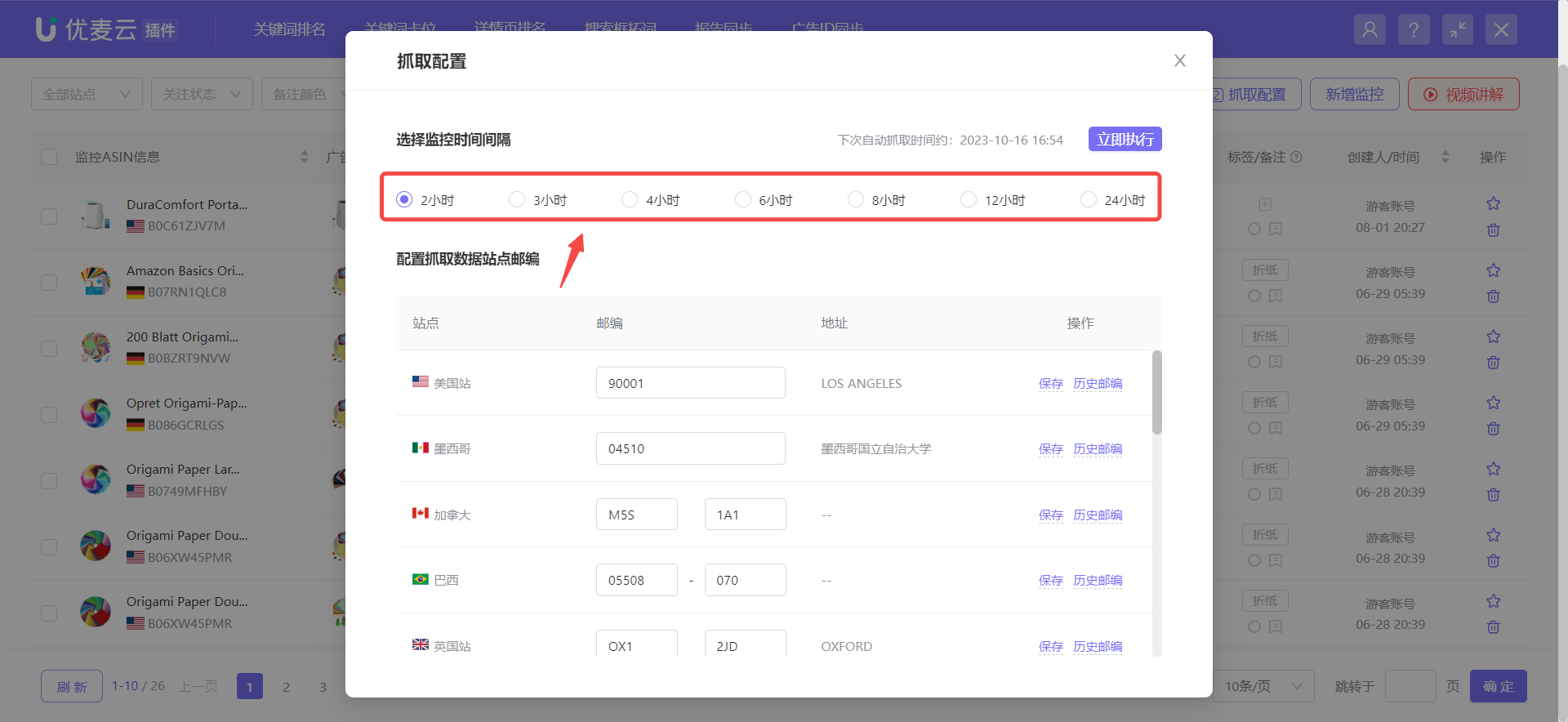
The SellerSpace extension supports monitoring data once every 2, 3, 4, 6, 8, 12, or 24 hours. You can choose a monitoring frequency that suits you. Due to Amazon's traffic limitations, it is recommended to choose a larger interval frequency. The monitoring time is in the corresponding marketplace time.
Enter the [Fetching Settings] page and select the corresponding frequency.
 +
+
2.3 Add Monitoring
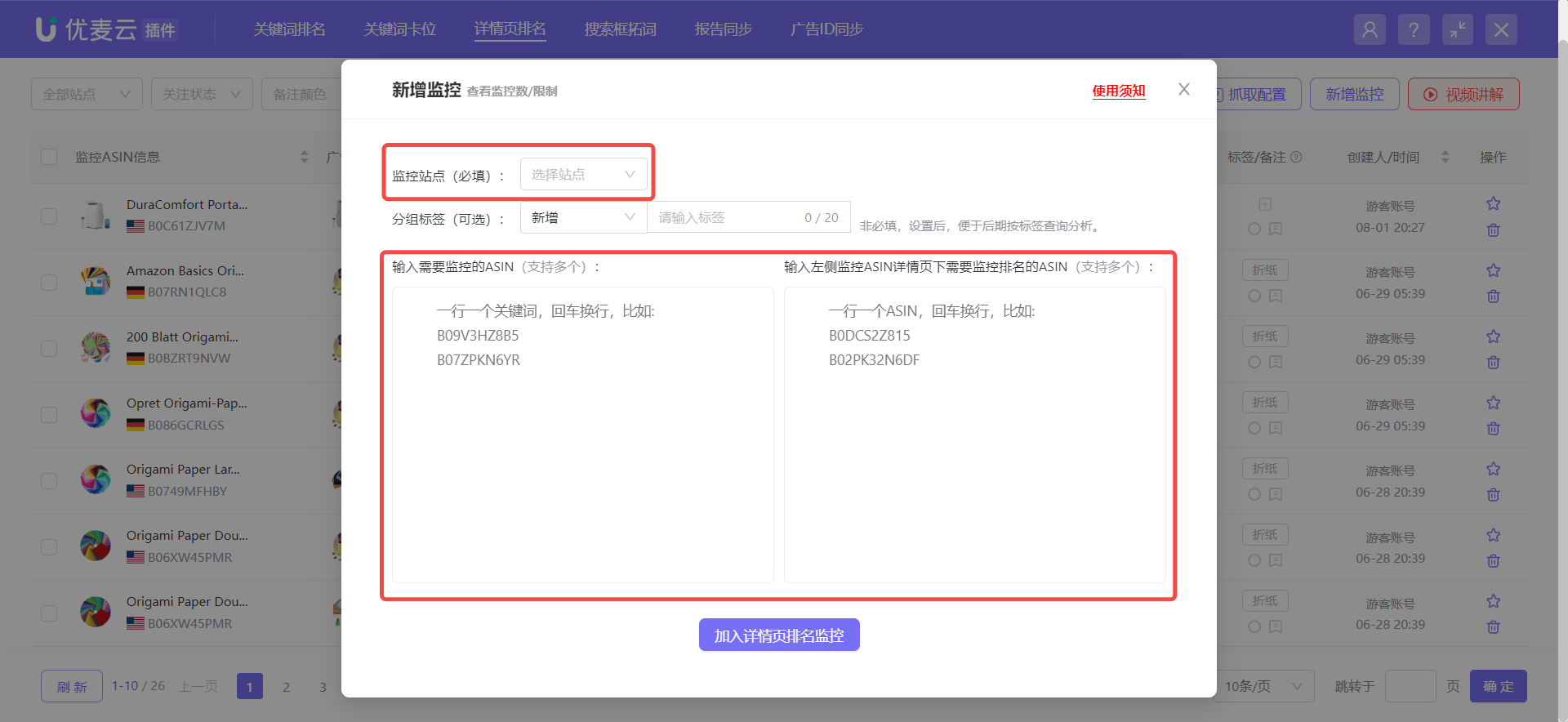
After configuring the marketplace zip code and monitoring interval time, you can add the product ASINs to be monitored and the ad product ASINs on their detail pages. At the same time, you can directly add group tags to the newly added monitoring.
Each SellerSpace account has a monitoring quota of 500, including keyword ranking and detail page ranking, and sub-accounts share the quota with the main account.
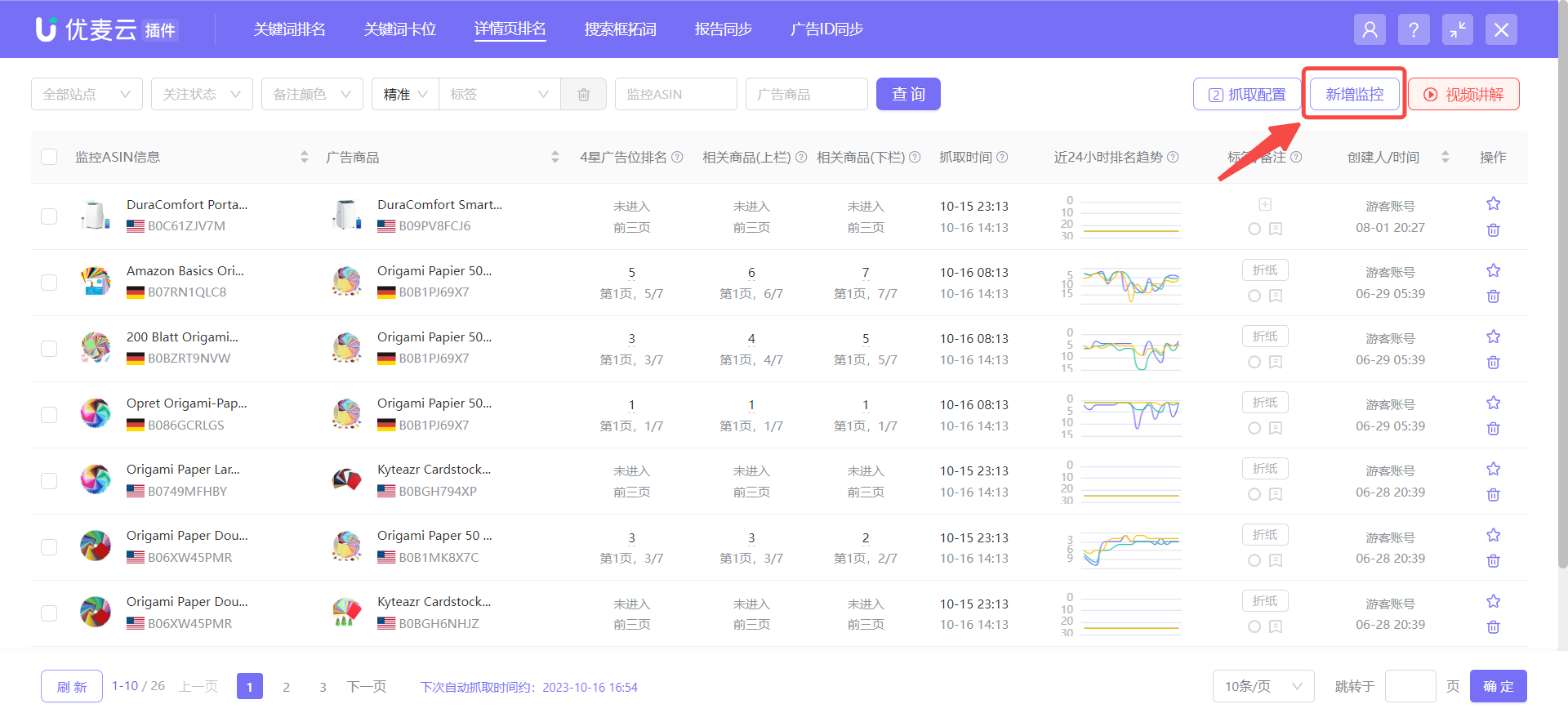
Click [Add Monitoring] to enter the adding page;
 +
+
Select the marketplace to be monitored, enter the product ASIN to be monitored, and the ad product ASIN under this product, and save.
 +
+
2.4 Manually Execute Monitoring Immediately (Optional) (Same as Keyword Ranking)
After you add monitoring, the system will not execute monitoring immediately. It will execute the first monitoring when the first interval time arrives according to the monitoring interval time you selected.
Therefore, if you want to execute monitoring immediately after adding, you can enter the [Fetching Settings] page and click [Execute Now]. The interval time for immediate execution is once per hour;
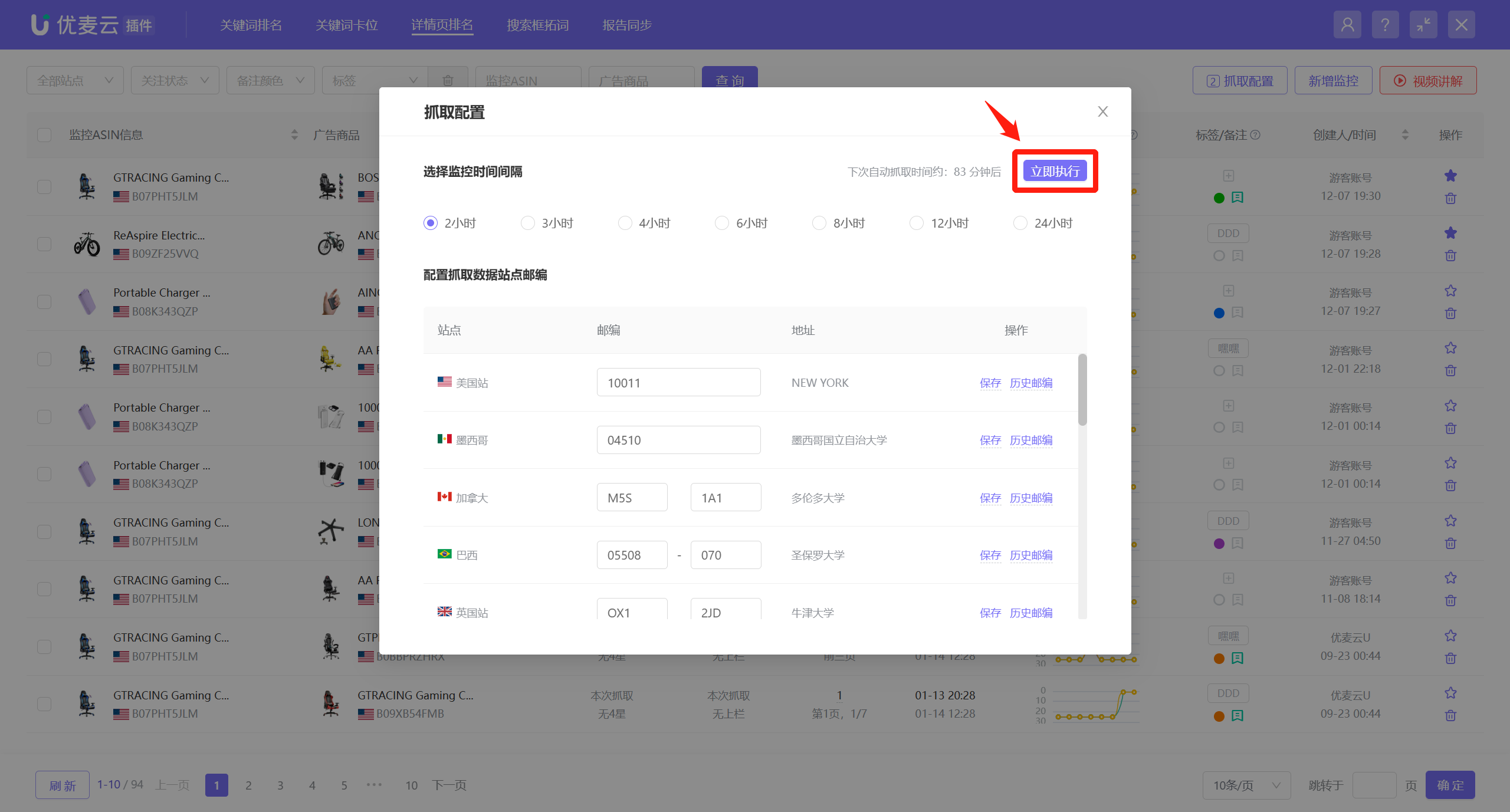 +
+
In addition, you can also view the next monitoring execution time point here.
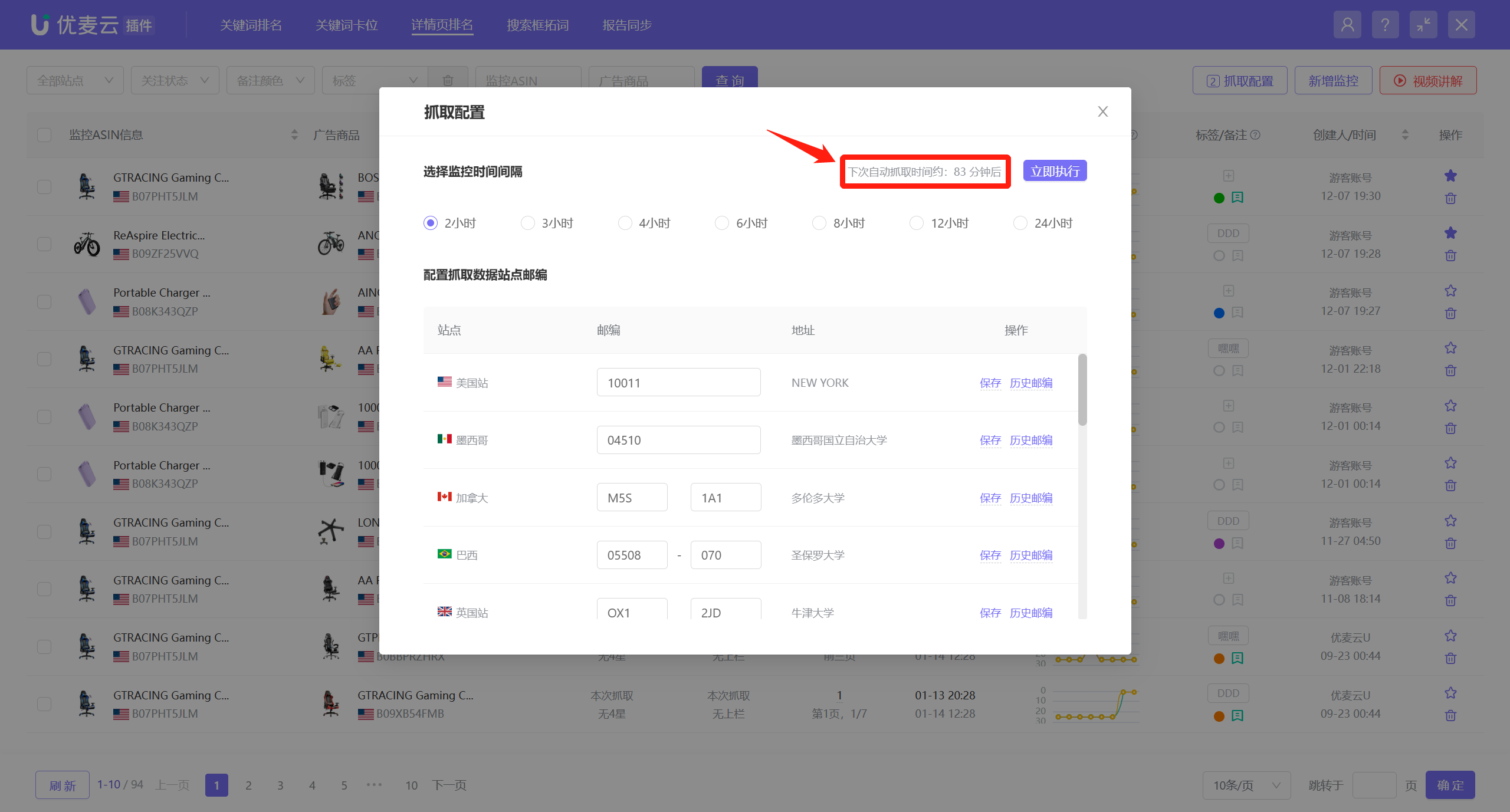 +
+
2.5 Add Tags/Remarks (Same as Keyword Ranking)
After adding monitoring, you can add tags and remarks to your monitored keywords for easy management.
There are multiple ways to add tags: add when adding new monitoring, add individually or in batches after adding.
Add group tags when adding new monitoring:
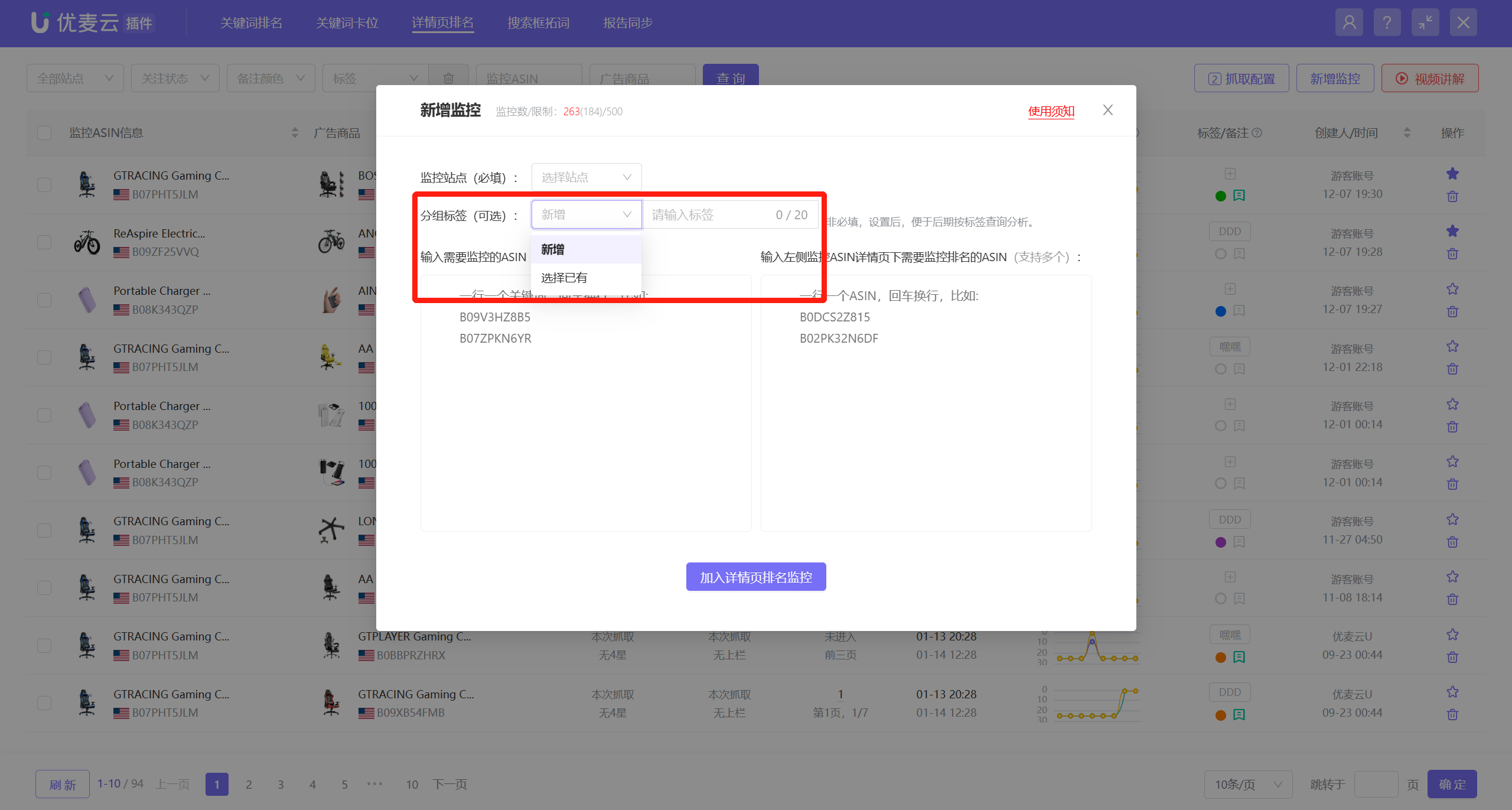 +
+
If you select an existing tag when adding new monitoring, you can also automatically fill in the monitored products and ad products under that tag, making it convenient for you to quickly add related products.
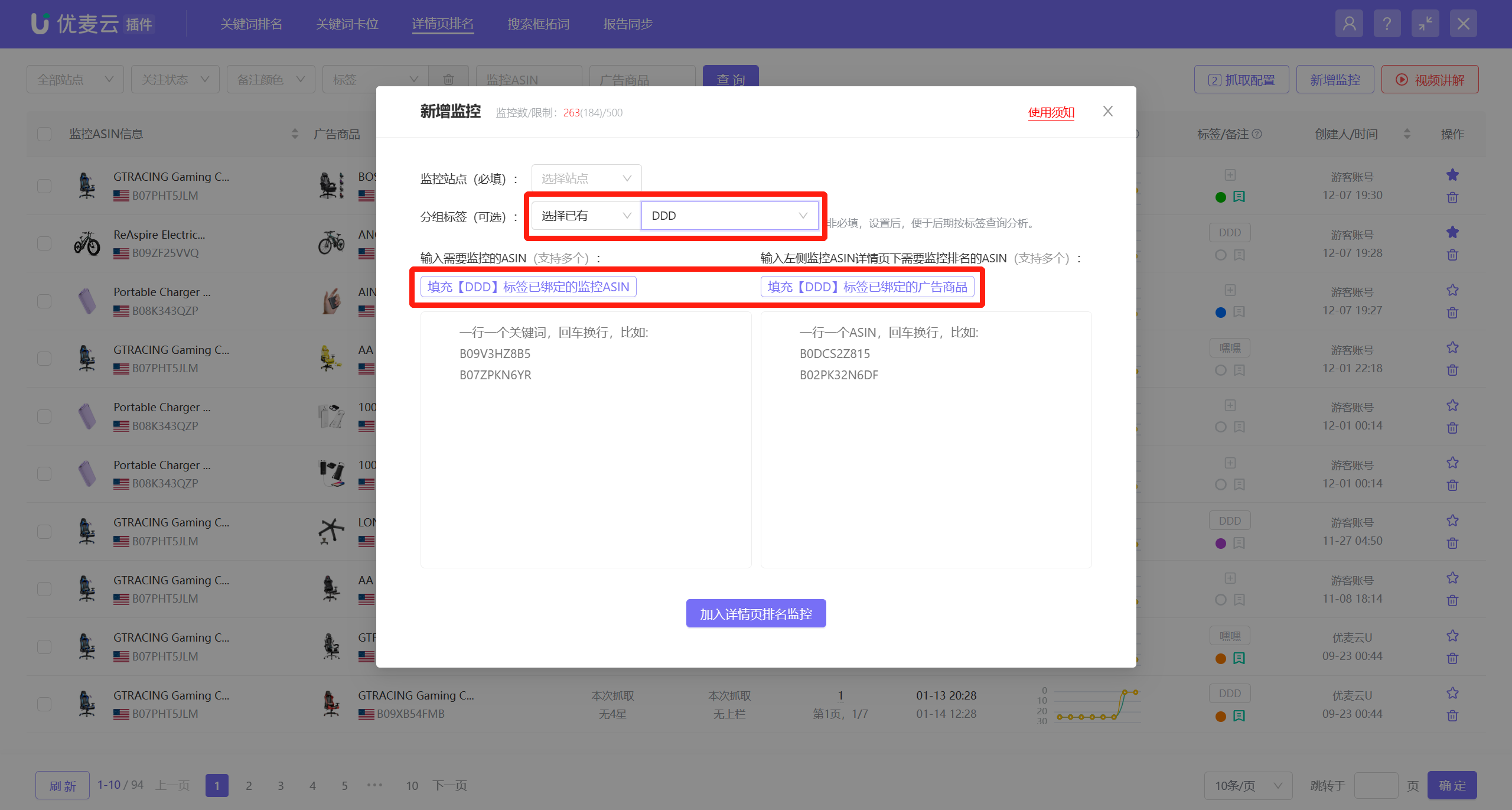 +
+
Add tags individually after adding new monitoring:
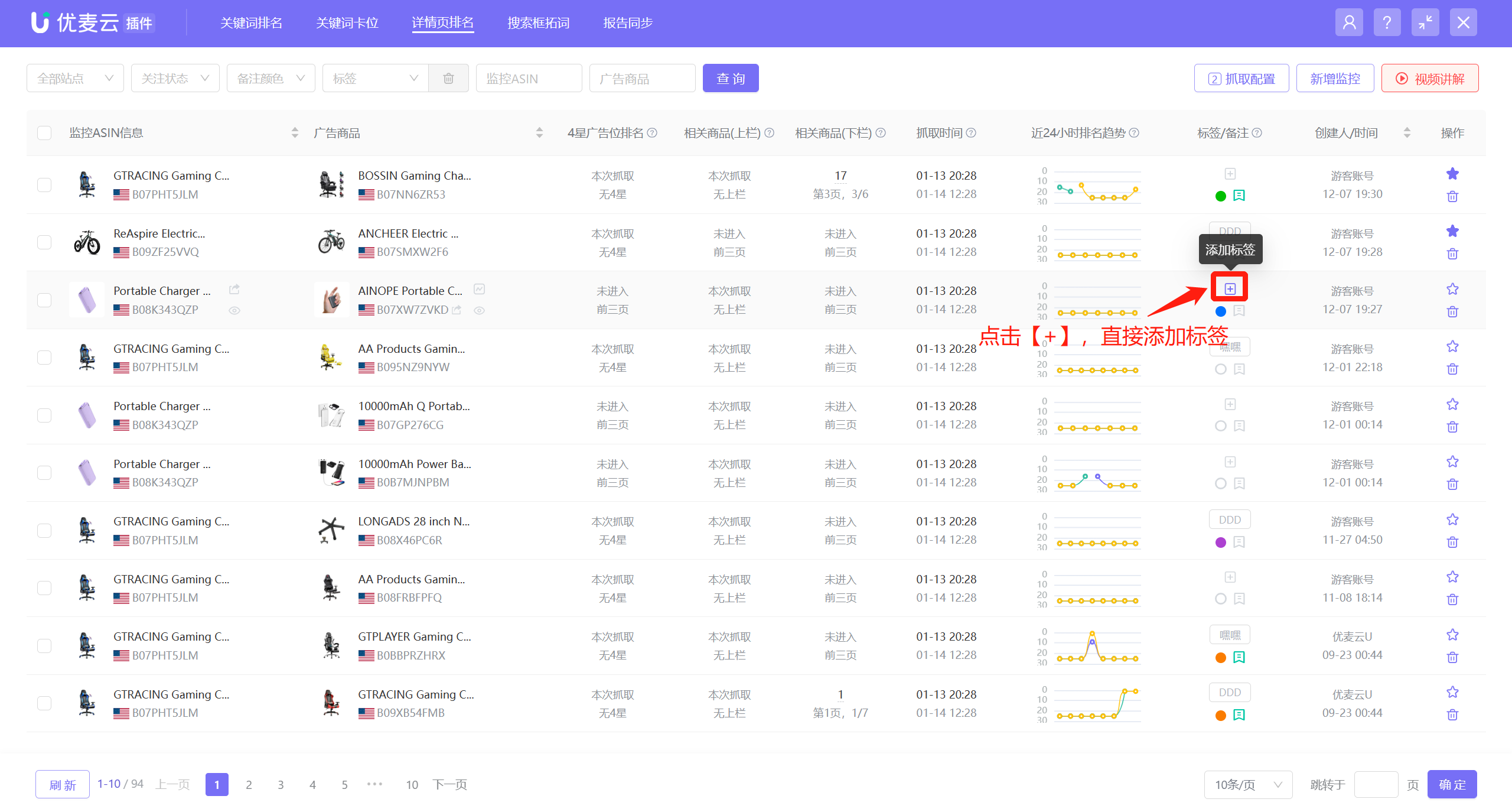 +
+
Add tags in batches after adding new monitoring:
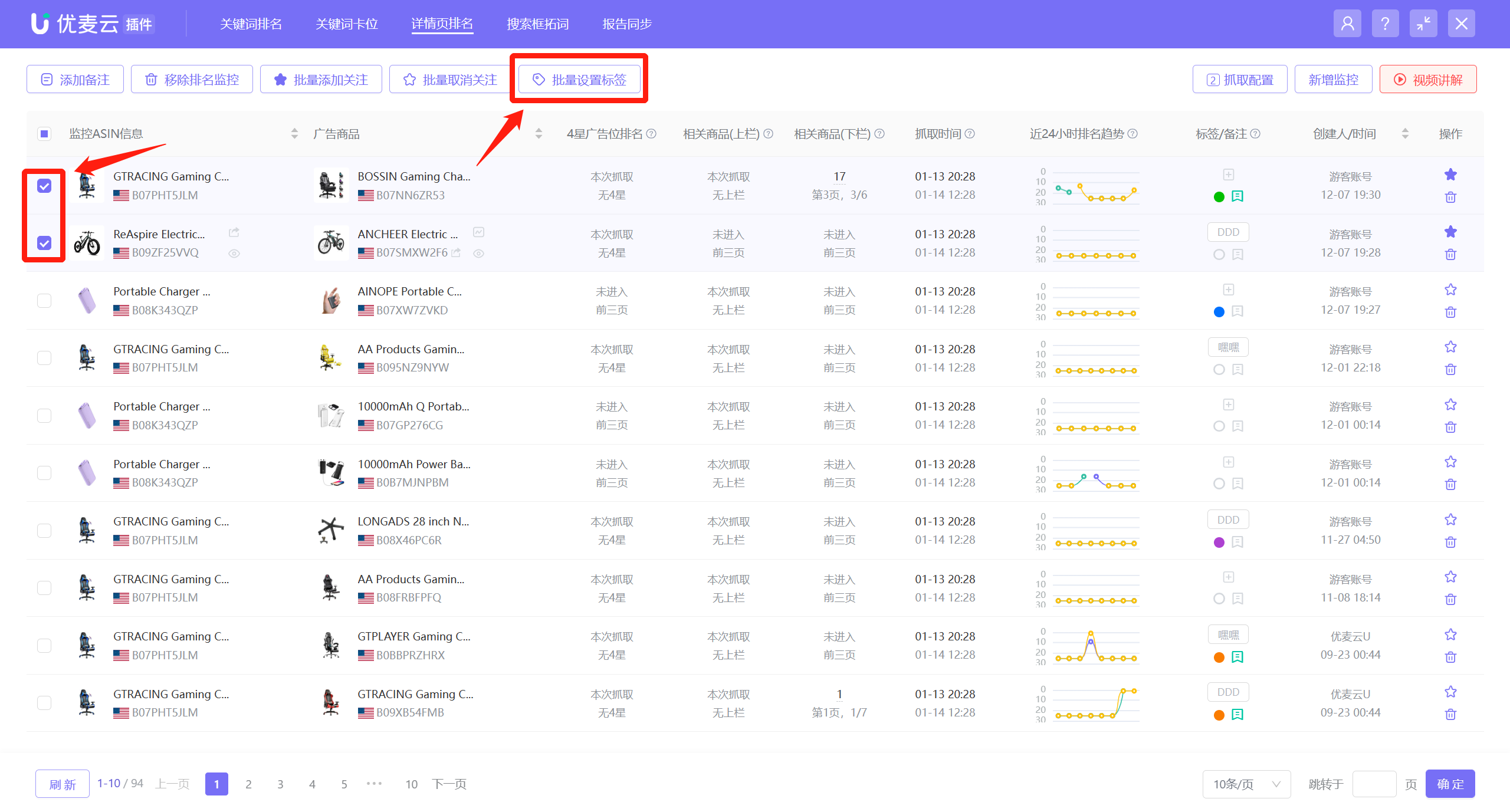 +
+
The adding method of remarks is the same as tags, and you can also add colors to remarks for classification.
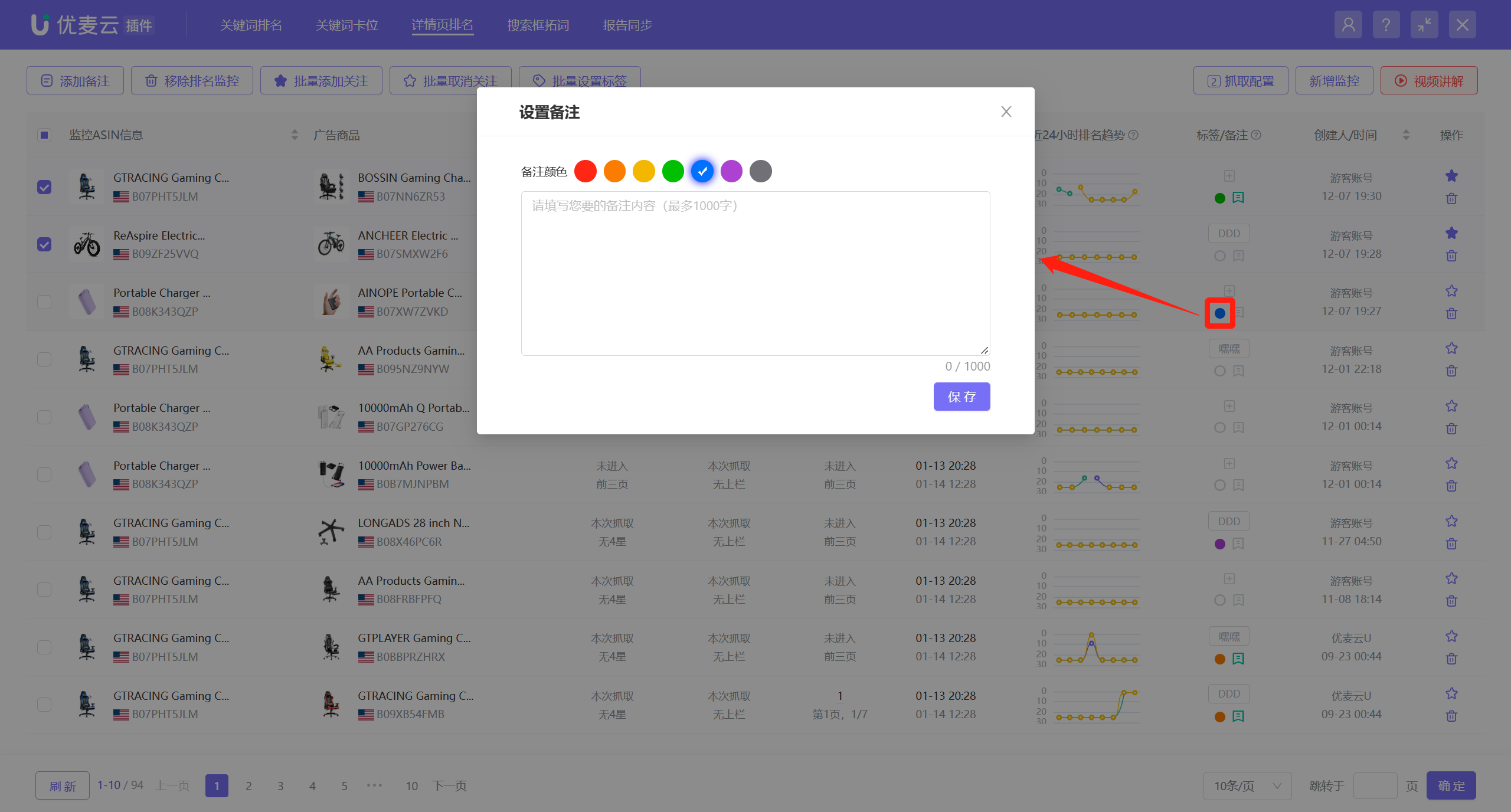 +
+
2.6 Add to Watchlist (Same as Keyword Ranking)
In addition to tags/remarks, you can also add key monitored products to the watchlist. After adding, the data of the monitored product will be displayed at the front by default, which is convenient for viewing and tracking.
Find the monitoring you want to watch, click the watchlist button on the left side of the monitoring to add it to the watchlist with one click;
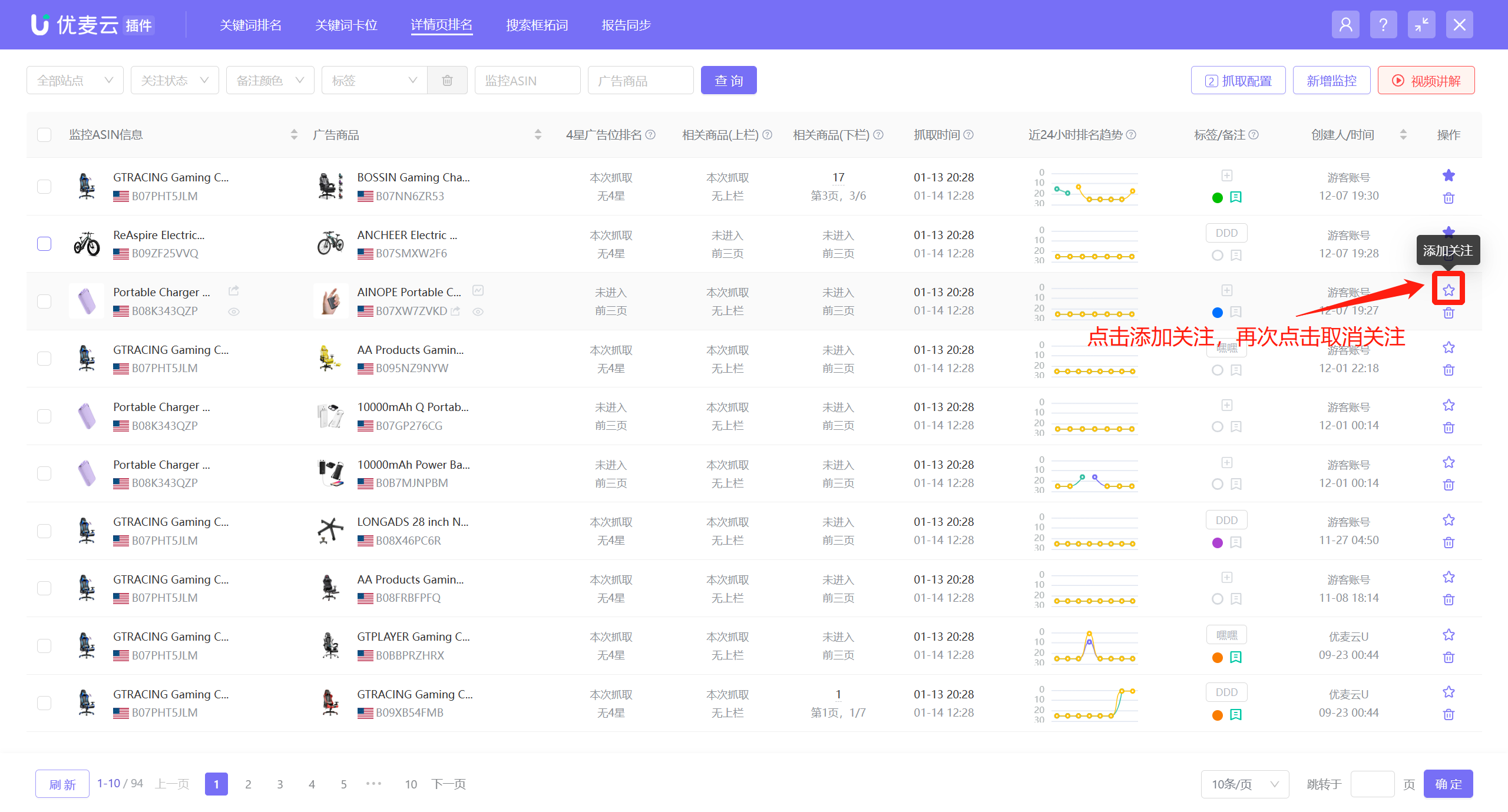 +
+
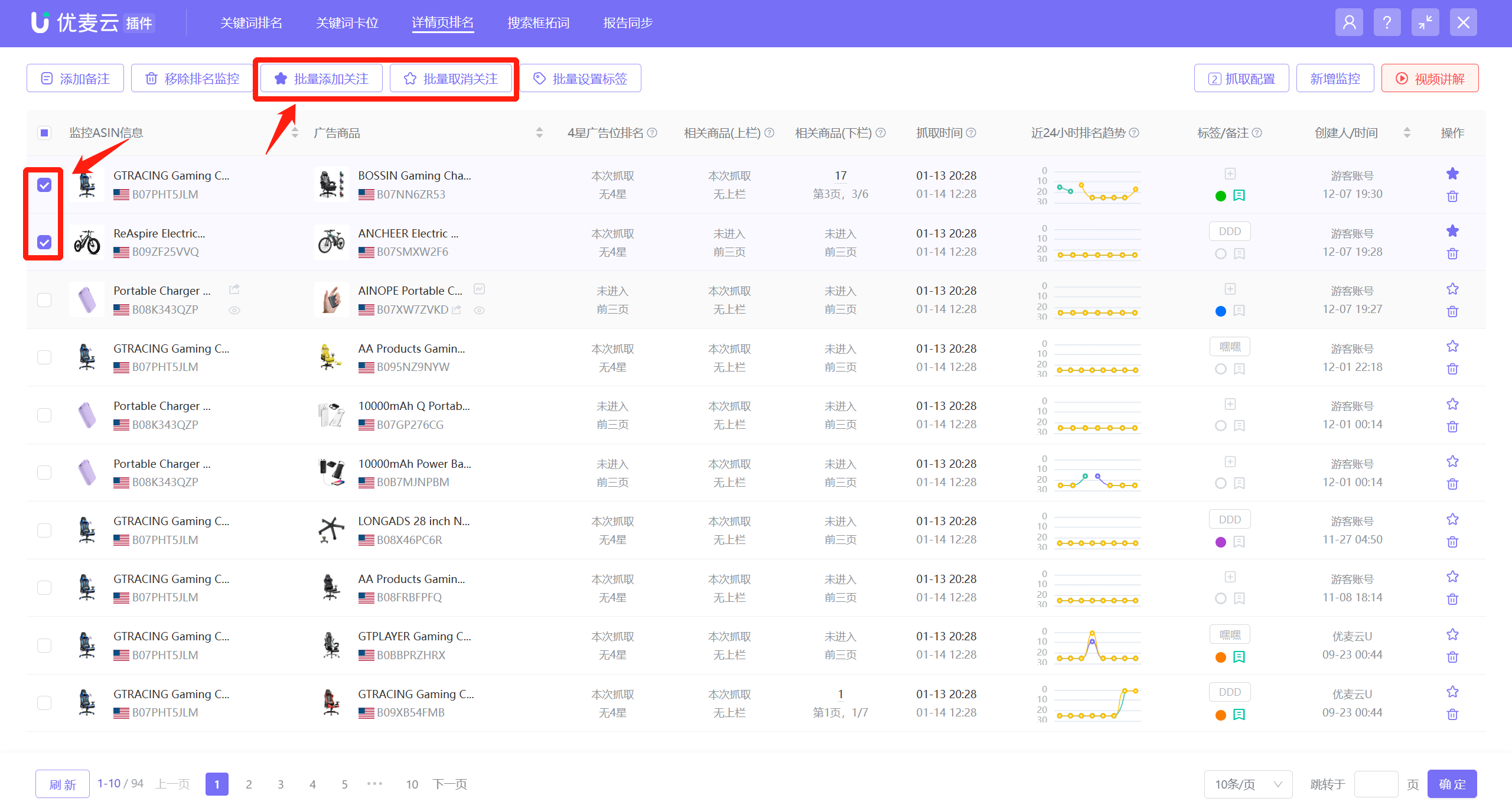
Or select the monitoring you want to watch, and click [Add to Watchlist] in batches to save with one click.
 +
+
2.7 Remove Ranking Monitoring (Same as Keyword Ranking)
You can remove products that you do not want to continue monitoring at any time.
The maximum monitoring quota for an account is 500. If you have used it up, but want to add new monitoring, you can also add new monitoring by removing some monitored products (or keywords).
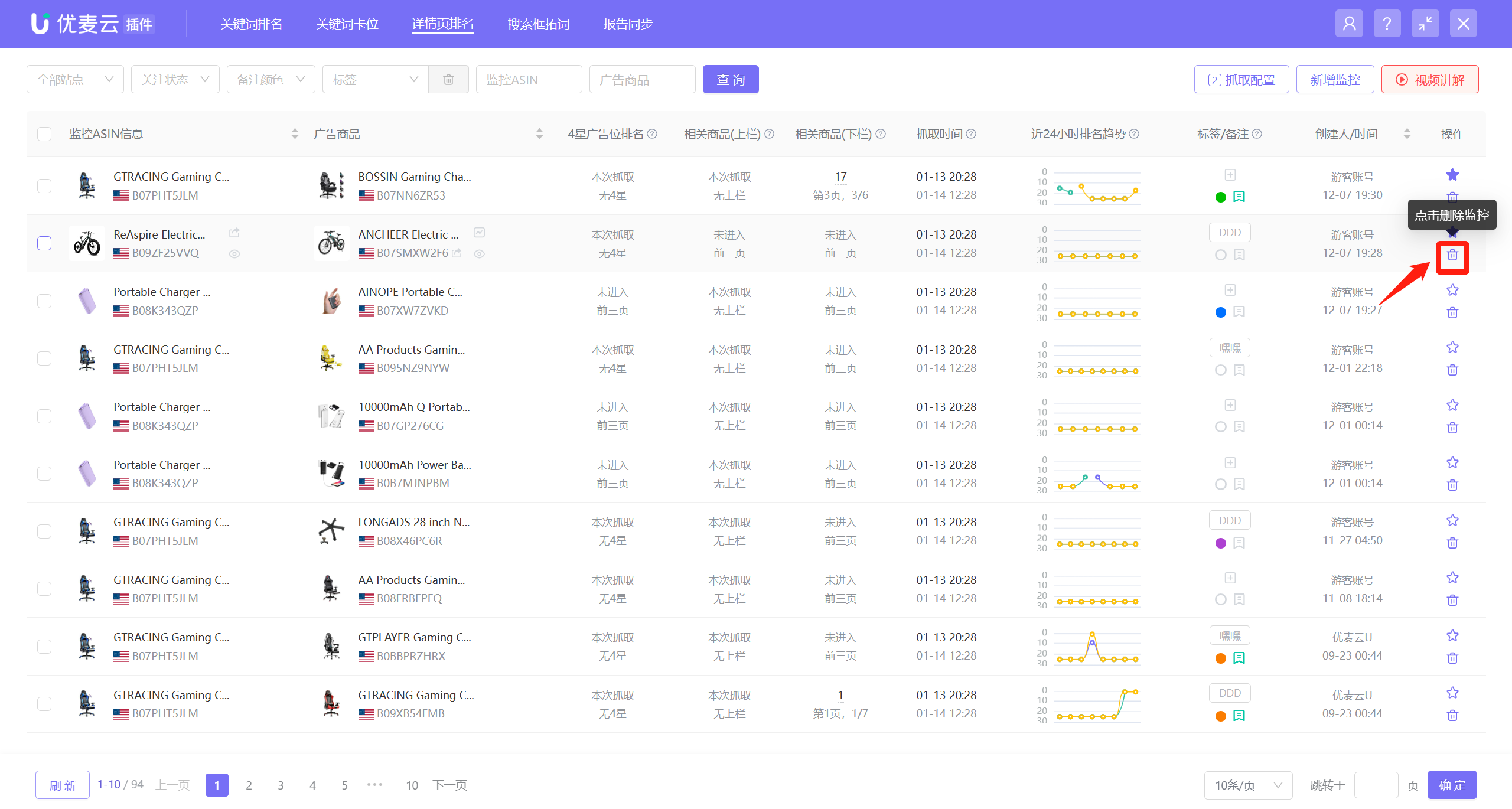
Find the monitored product you want to remove, click [Operation] on the right, and select [Remove Ranking Monitoring];
 +
+
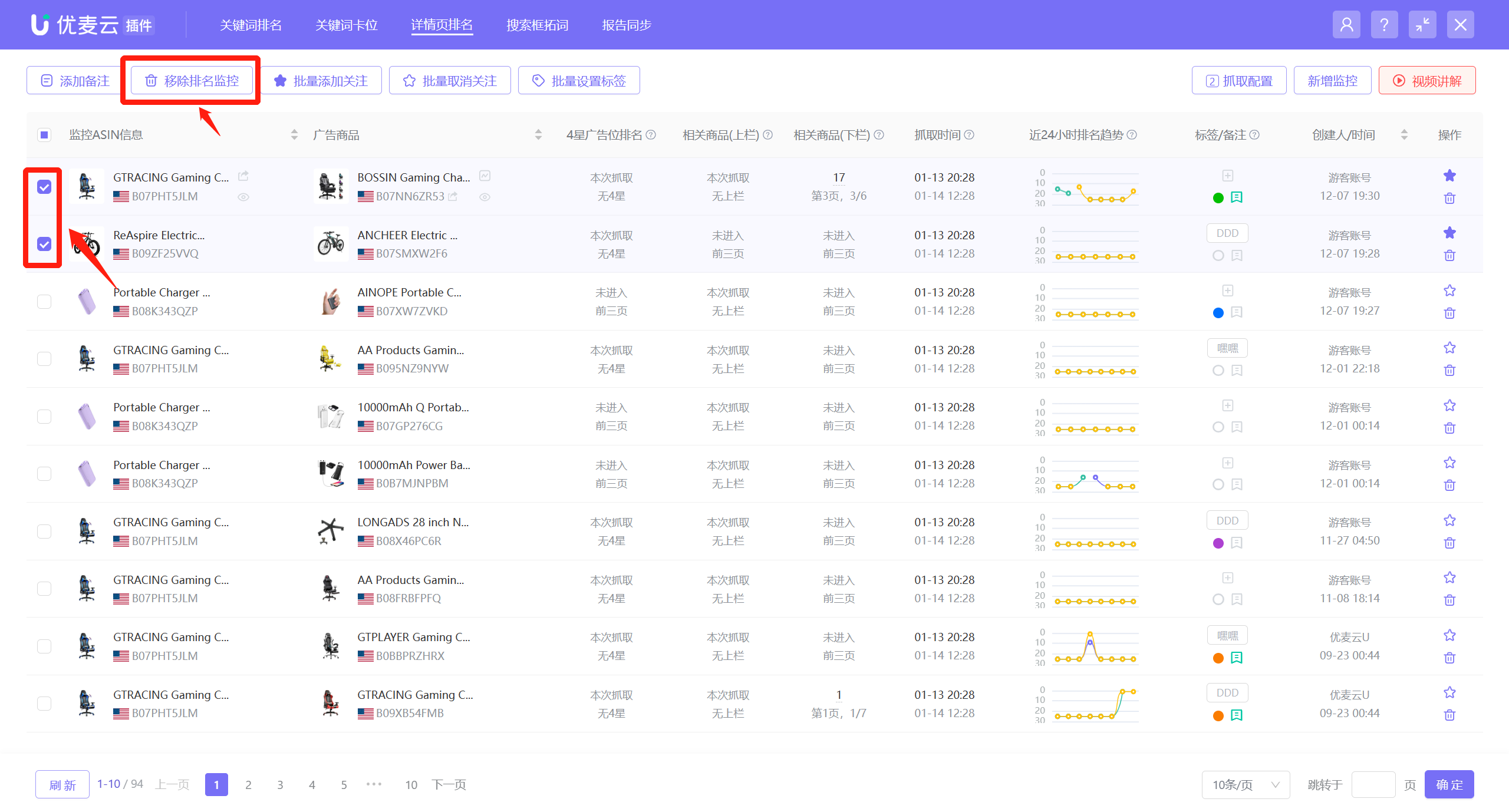
Or select the monitored keywords you want to remove, and click [Remove Ranking Monitoring] to remove them in batches.
 +
+
3. Analyze Monitoring Data
There are three ad placements in a product detail page: 4-star ads (4 stars and above) + Related Products (above the fold) + Related Products (below the fold).
SellerSpace Extension's Detail Page Ranking Monitor feature mainly monitors the ranking of products in these ad placements. The monitoring data includes: the latest ad ranking and ranking trend, ad products that have entered the top 3 pages, and monitored ASINs that have entered the top 3 pages.
Through Detail Page Ranking Monitoring, you can quickly track and analyze the ad performance of ASIN-targeted campaigns, and judge whether you need to optimize further; analyze the performance of competitors around ad placements and adjust your own advertising strategies; analyze the ad product details in product detail pages and optimize your Listing, etc., helping you better run Sponsored Product Ads on detail pages and improve advertising ROI.
3.1 Latest Ad Ranking and Ranking Trend
In addition to viewing ranking information, the latest ad ranking and ranking trend data can also be used to view the product details of the top 20 products in each ad placement at the ranking time node, helping you track the performance of Sponsored Product Ads on detail pages and analyze competitor product details to further optimize Listing keyword embedding and ad campaigns.
Latest Ad Ranking:
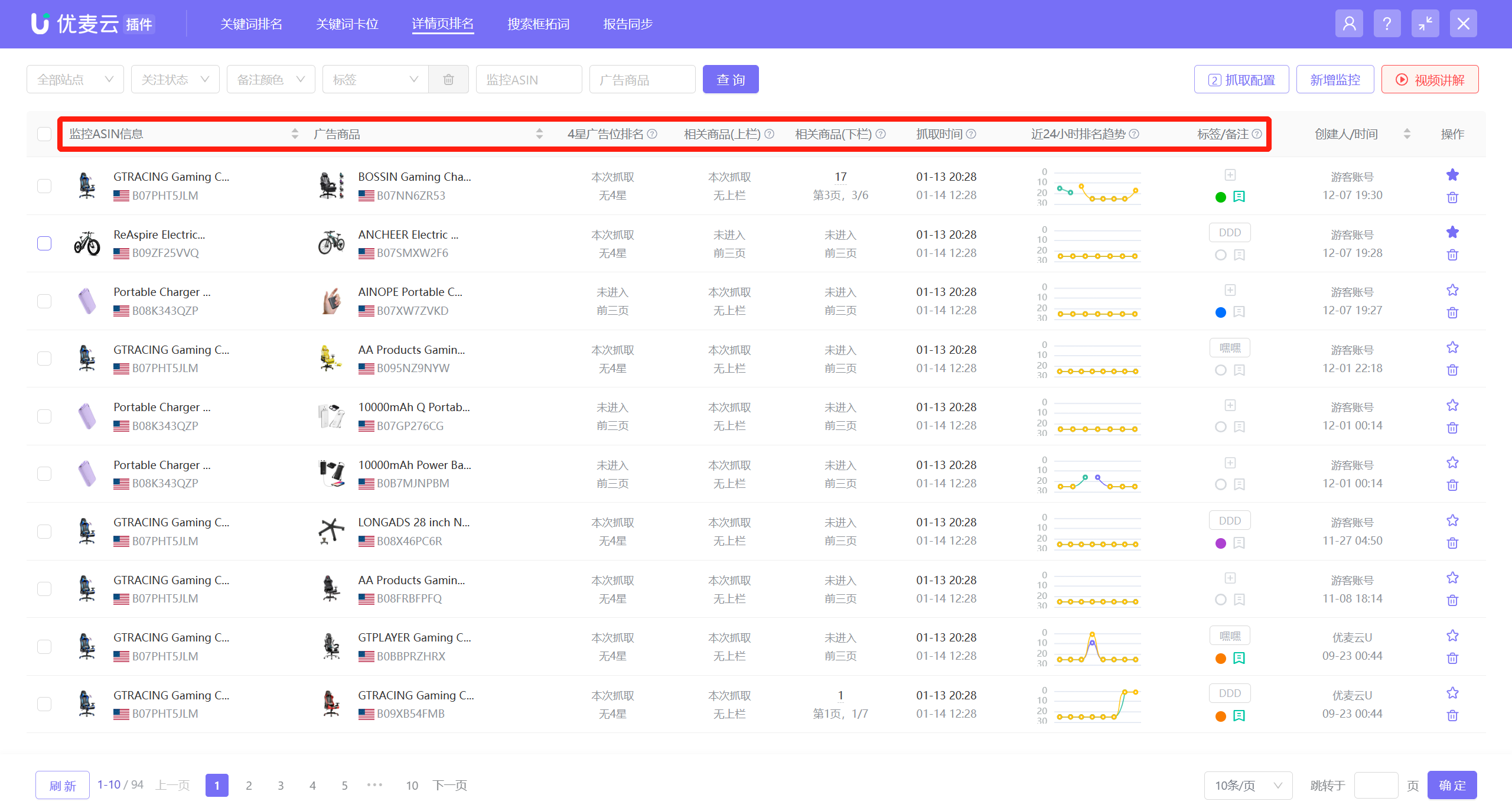
You can directly view the monitored ad product data on the homepage of the Detail Page Ranking Monitor feature, including: product information, the latest synchronized ranking data of different ad placements, the latest fetching time, the ranking trend data in the last 24 hours, tags and remarks, etc.;
 +
+
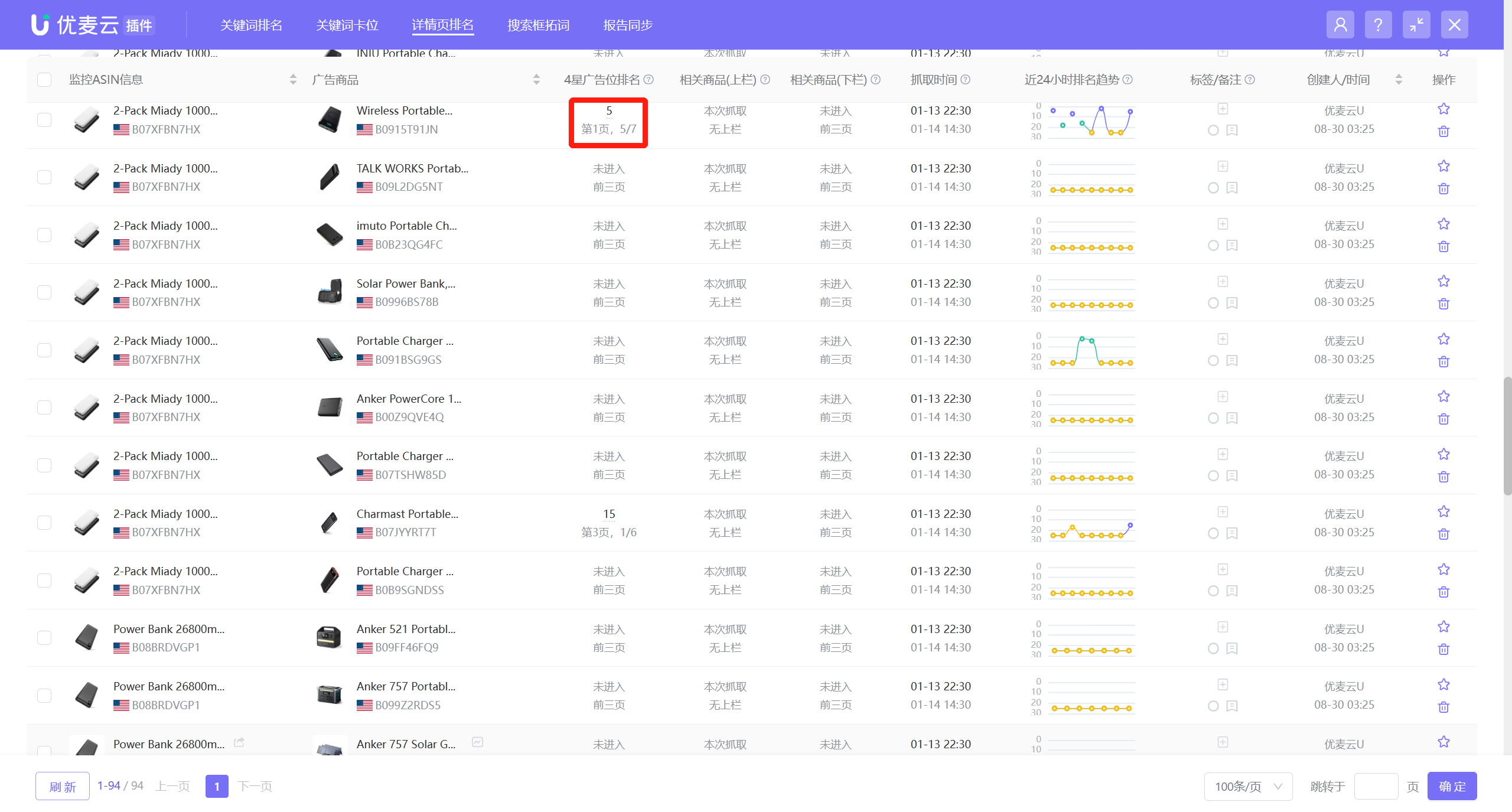
Among them, the ranking of the ad placement refers to the absolute position of the ad placement (including the ad placement itself).
For example: The ad ranking shown in the figure, Upper Row: 5, Lower Row: Page 1, 5/7,
Indicates: In the latest fetch, the ad product, in the 4 stars and above ad placement on the detail page of the monitored ASIN, the highest absolute position ranking in the top 3 pages is 5th, specifically on page 1, at the 5th position out of 7 products.
 +
+
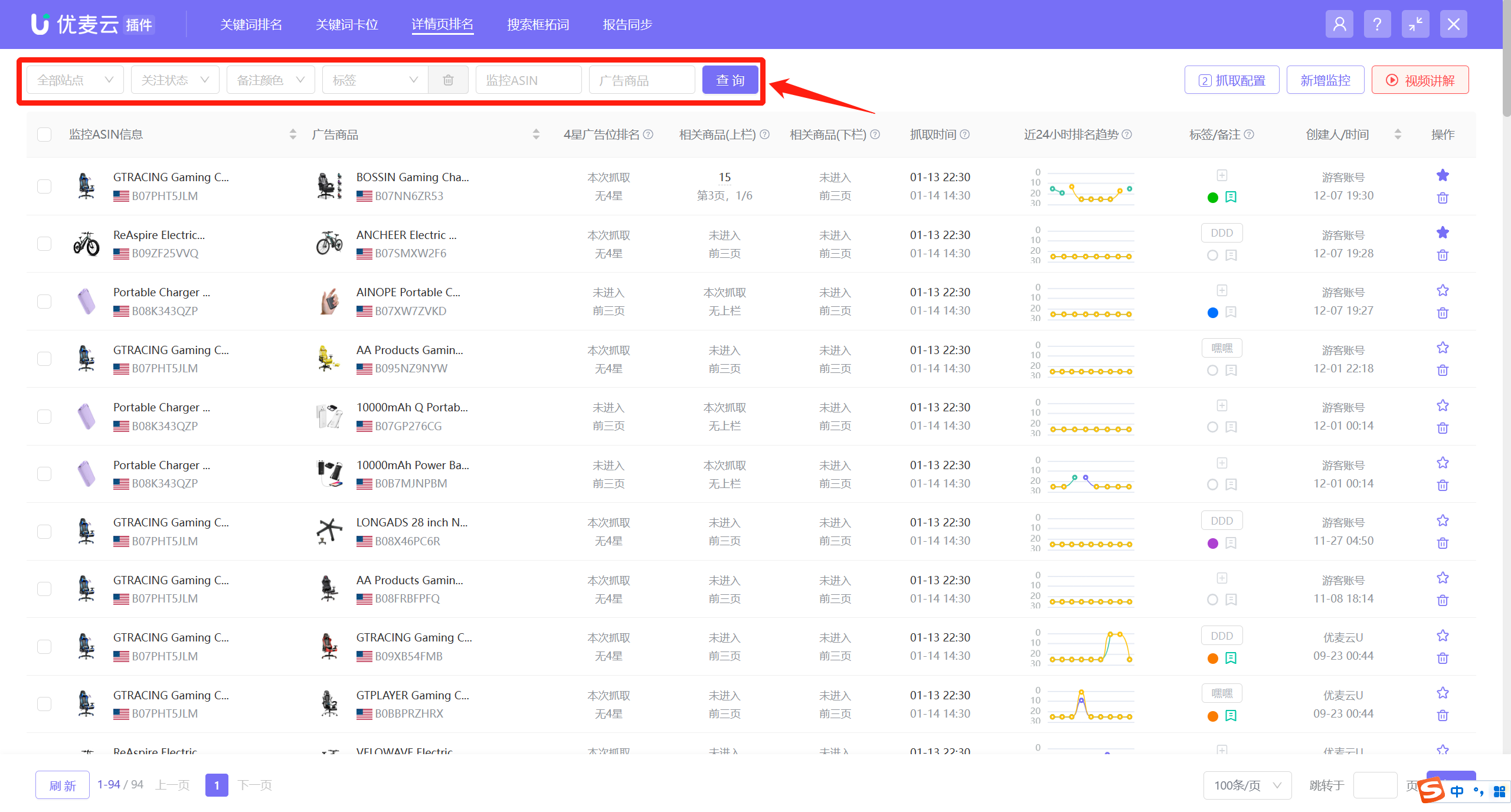
When there are a large number of monitored items, you can also use the filter bar to filter and view the ranking data of the corresponding monitored ASINs.
 +
+
Historical Ranking Trend of Monitored Ad Products:
There are 2 entrances to view historical ranking trend data: next to the ad product information, and the homepage ranking trend (last 24 hours);
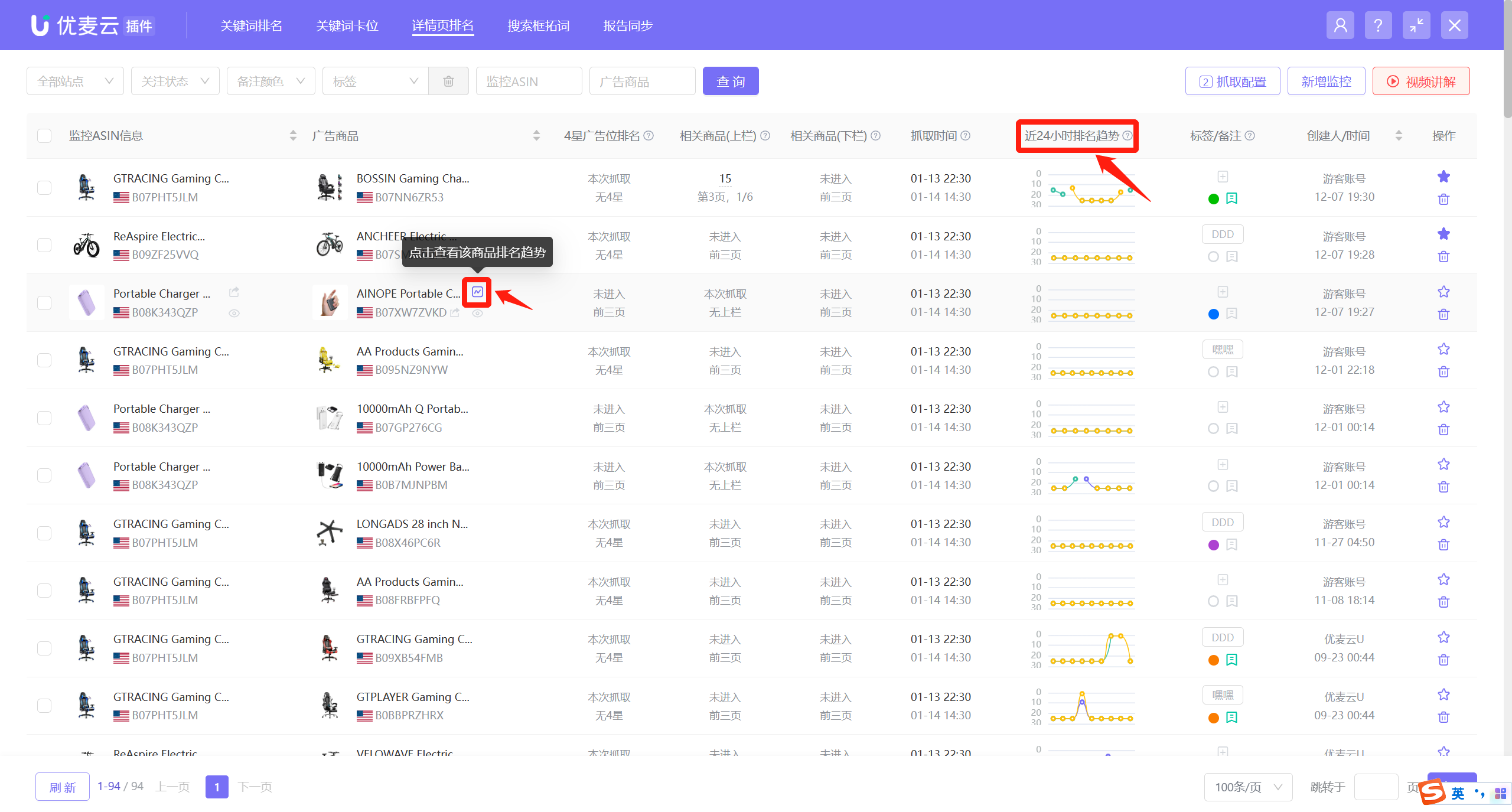 +
+
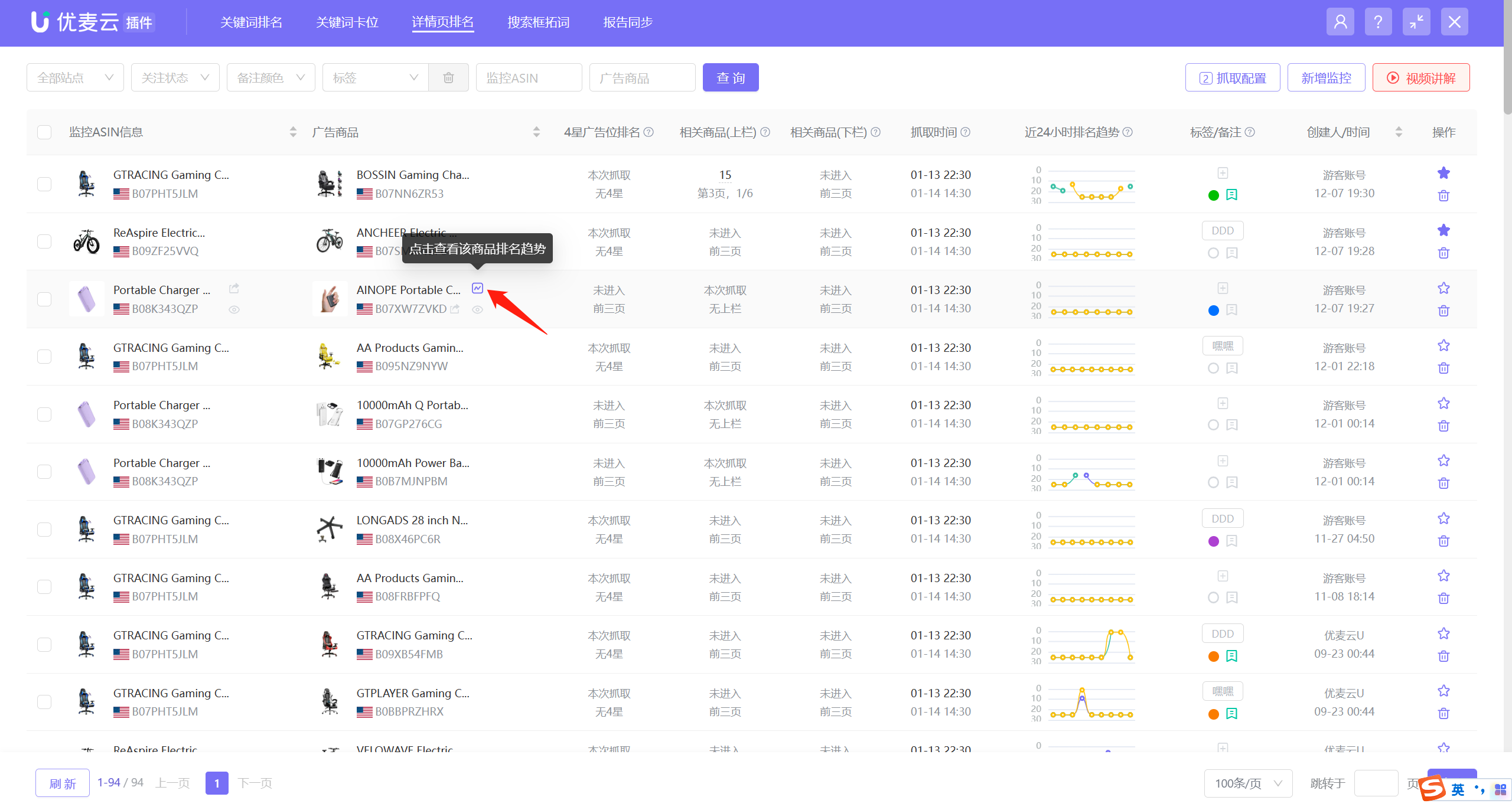
Click the trend icon or [Ranking Trend] in the operation list to enter and view the historical ranking trend data of the ad product;
 +
+
Enter the historical ranking trend page,
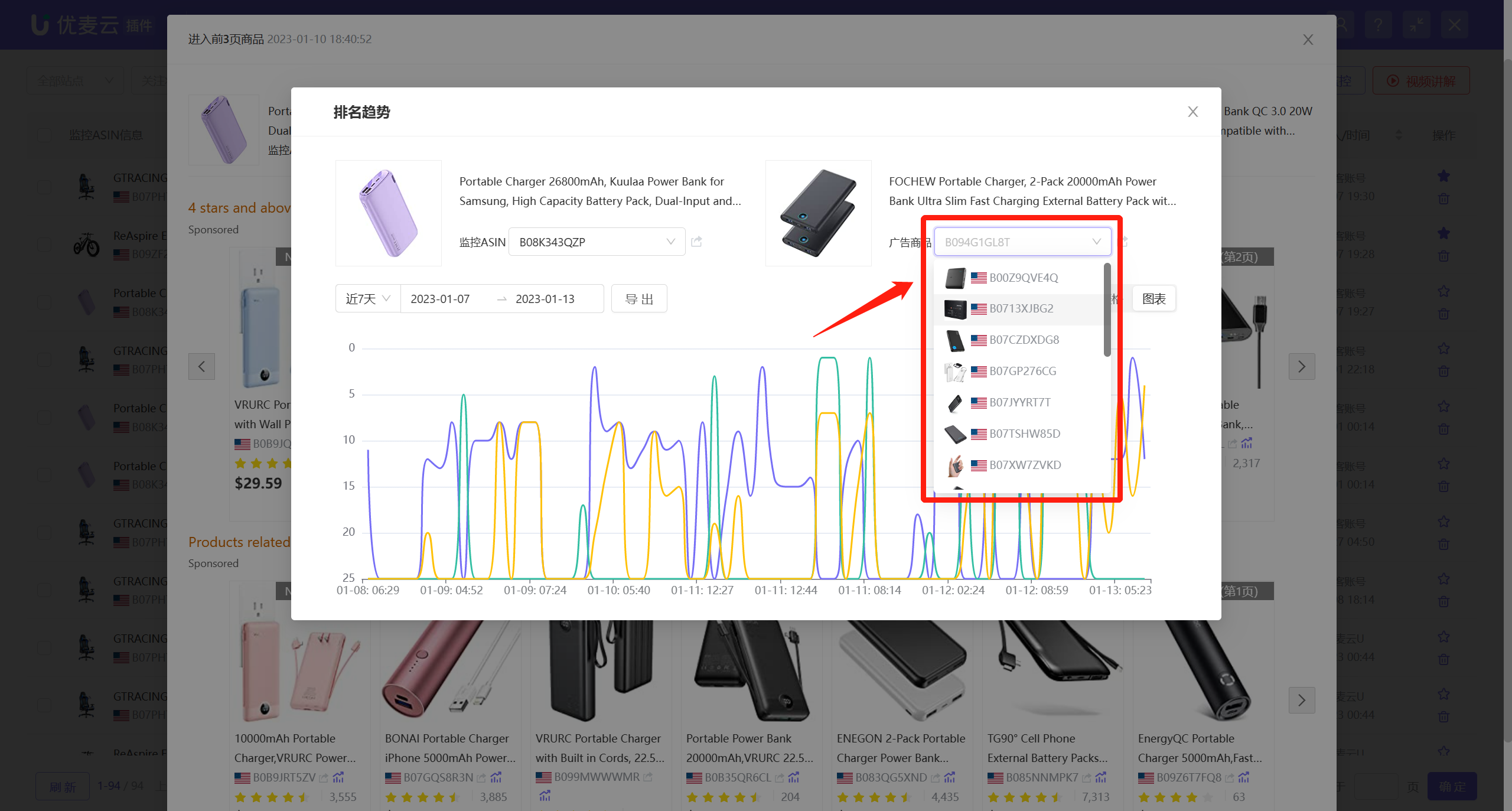
The system displays the data for the last 7 days by default, and you can also customize to select and view data for other time ranges.
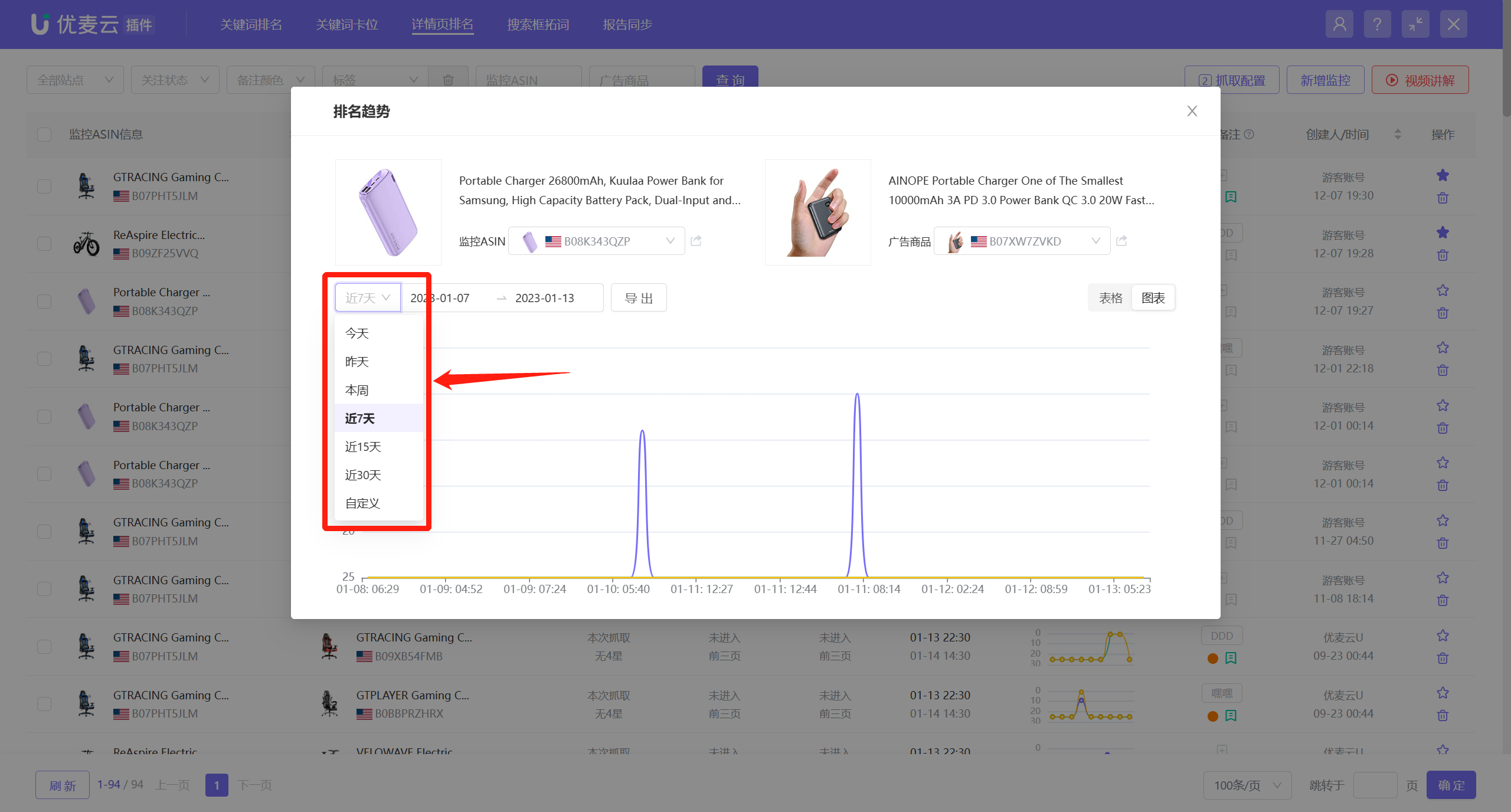 +
+
Hover the mouse over the node to view the ad ranking at that time node. This ranking is the absolute position (including the ad placement);
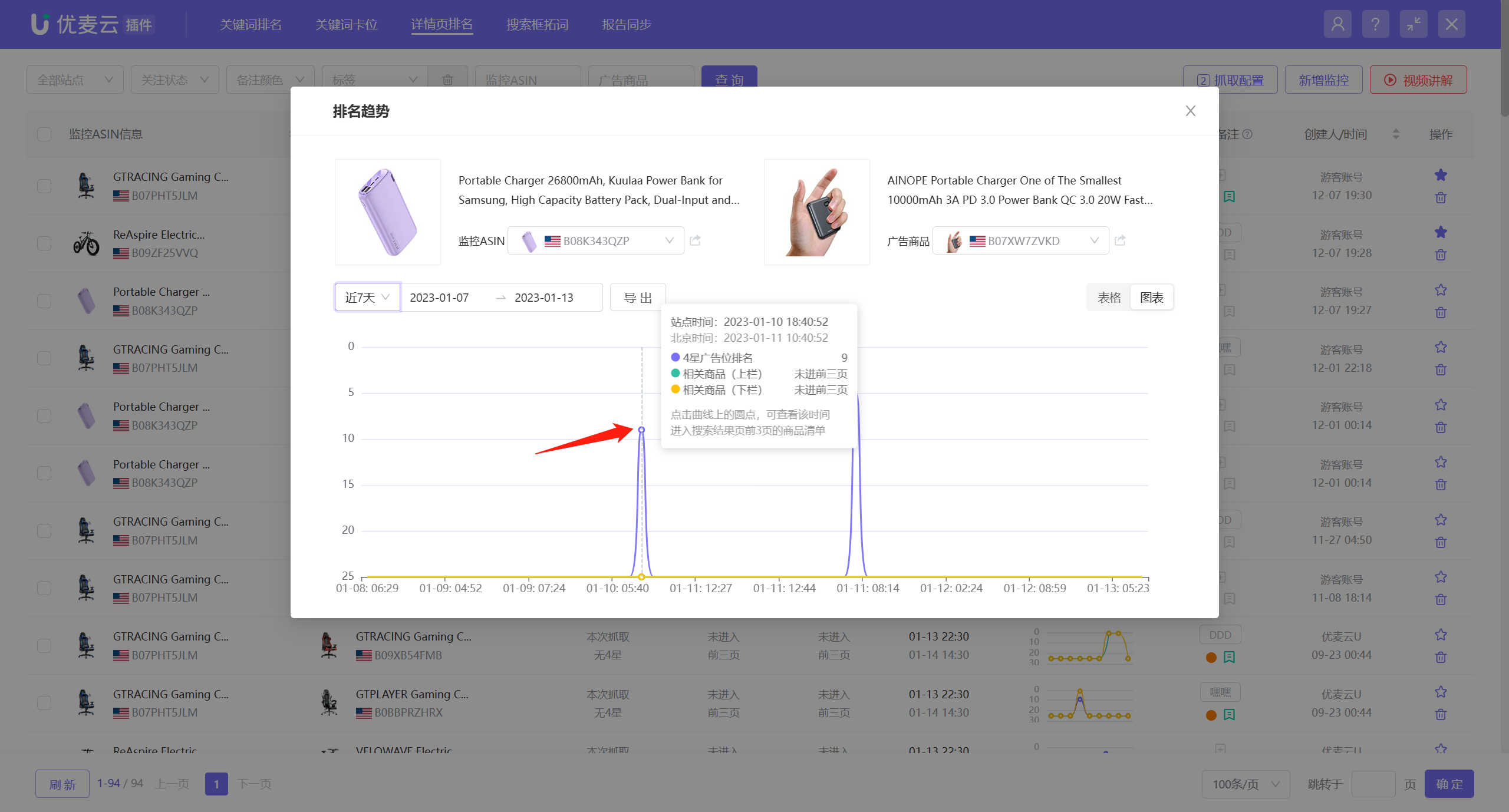 +
+
Click the time node to also enter and view the product details of the top 3 pages of the three ad placements at that time node.
The viewing operations for all ranking trend charts are consistent.
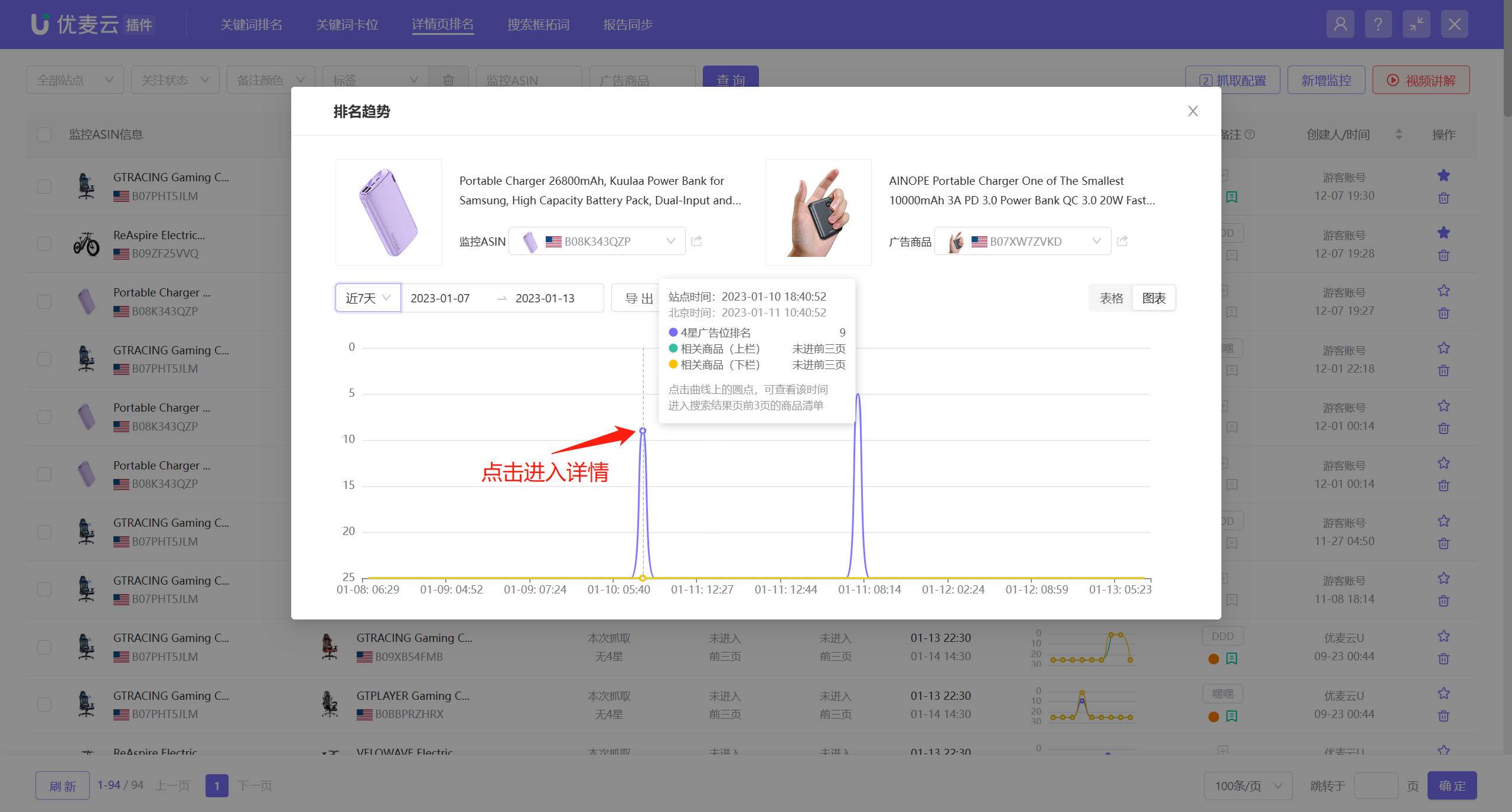 +
+
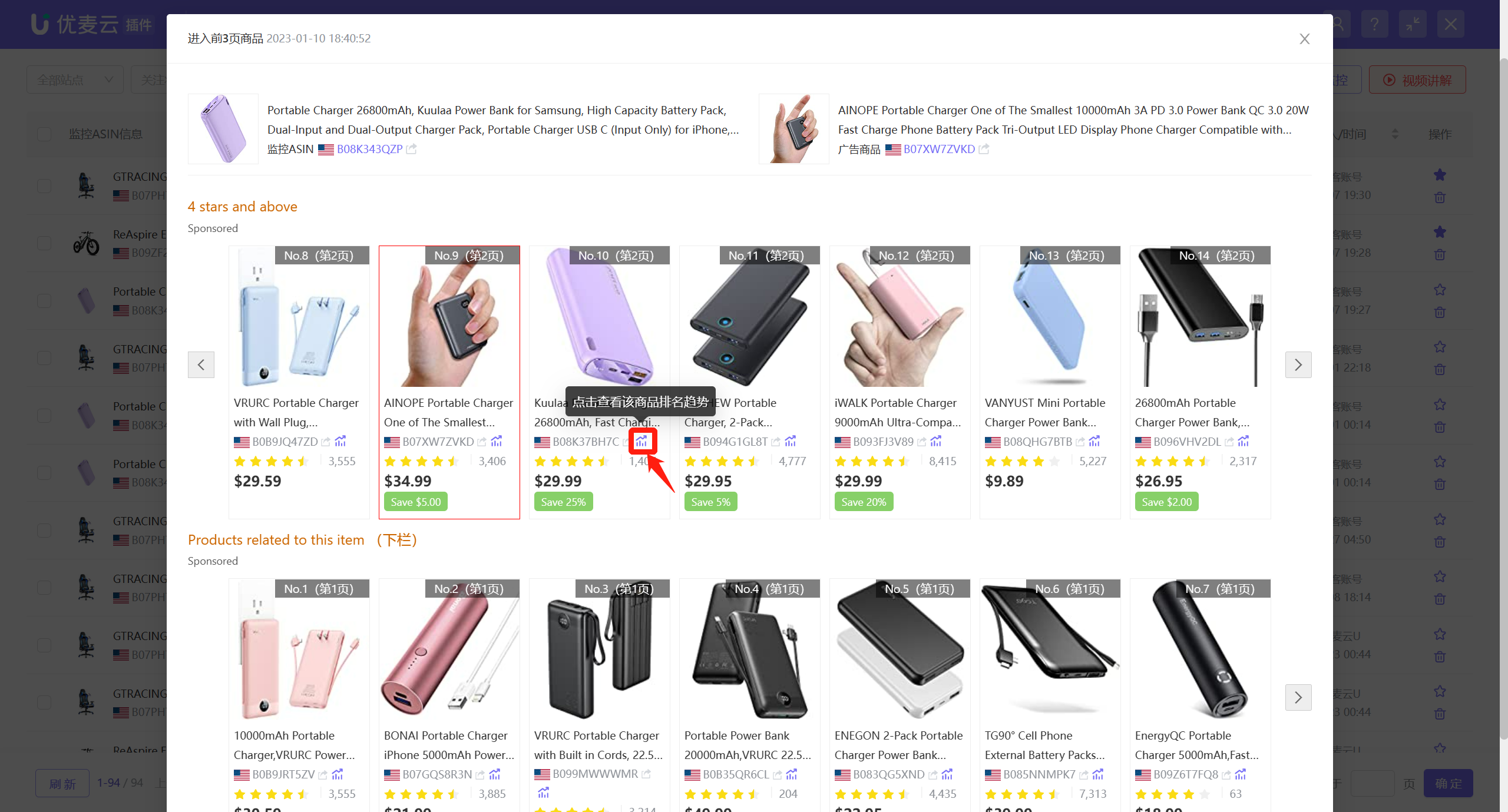
Enter the "Top 3 Pages Product Information" page,
You can view the product details of the top 20 products in the three ad placements on the detail page of the monitored product at the selected time node. The products in red boxes indicate the currently monitored ad product and its position.
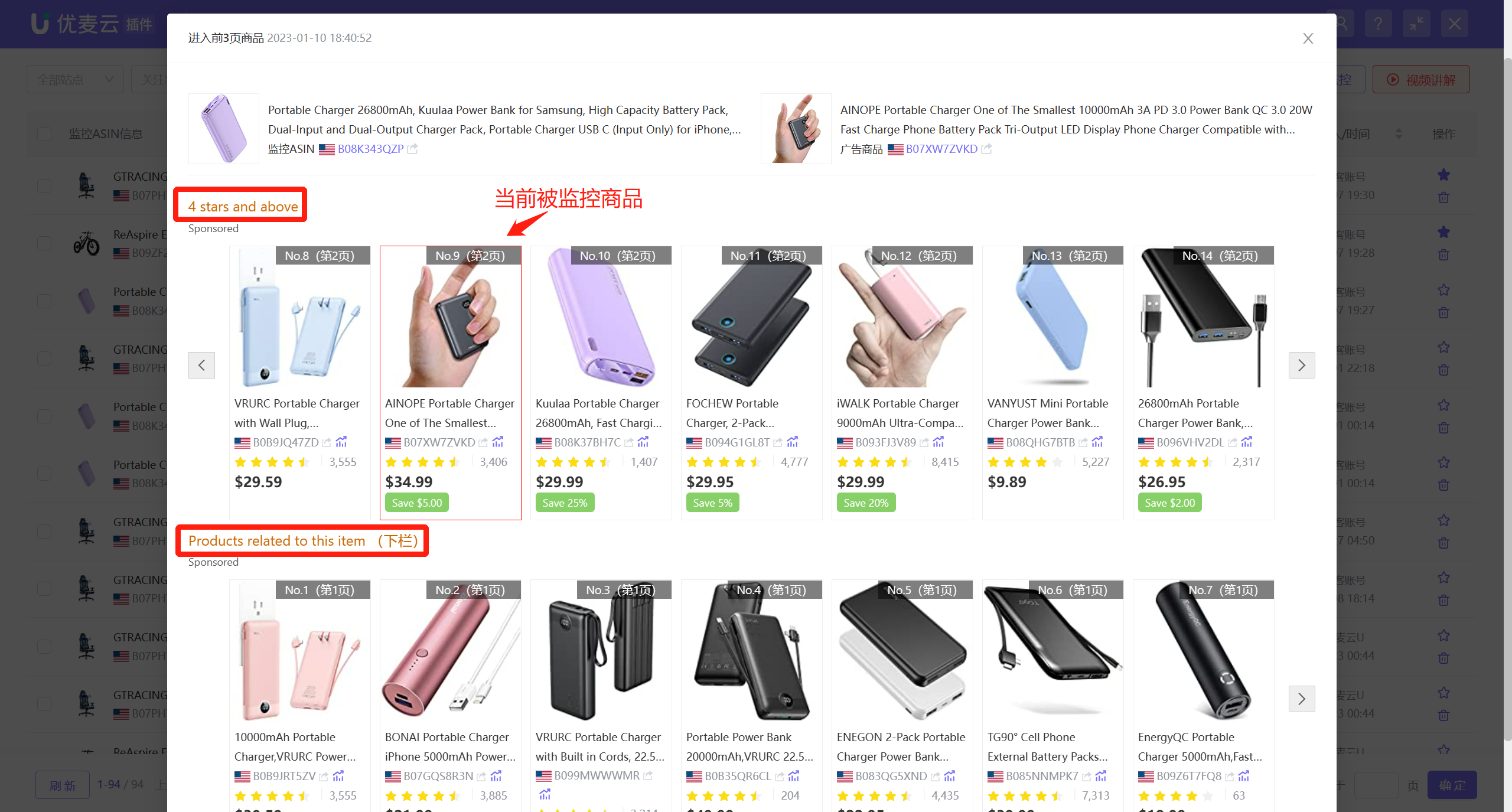 +
+
If you are interested in a certain ad product, you can also click the trend icon next to the product to further view the historical ranking trend data of the ad product.
 +
+
On the ranking trend chart page, in addition to viewing the currently selected monitored ASIN and the ad products on its detail page, you can also switch and select to view the ranking trend data of other monitored ad products. The viewing and analysis operations are consistent with the previous description.
 +
+
3.2 Monitored ASIN Dimension: Ad Products That Have Entered the Top 3 Pages
For monitored ASINs, view the product information of products that have entered the top 3 pages of ad placements on their detail pages at different time nodes from a buyer's perspective.
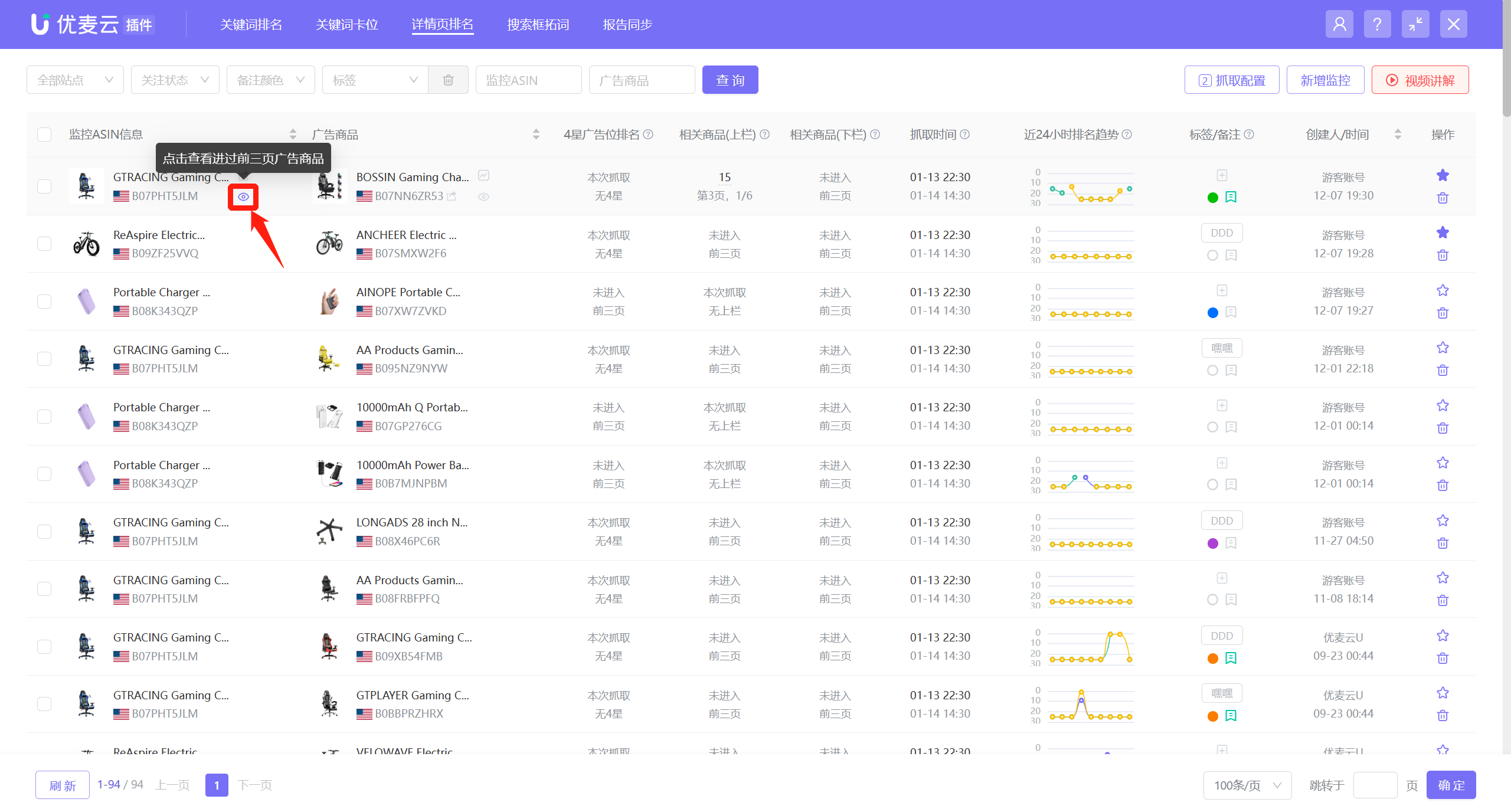
Find the corresponding monitored ASIN, click the view icon on the right, or click the view button on the right and select [Ad Products That Have Entered the Top 3 Pages] to enter the data page;
 +
+
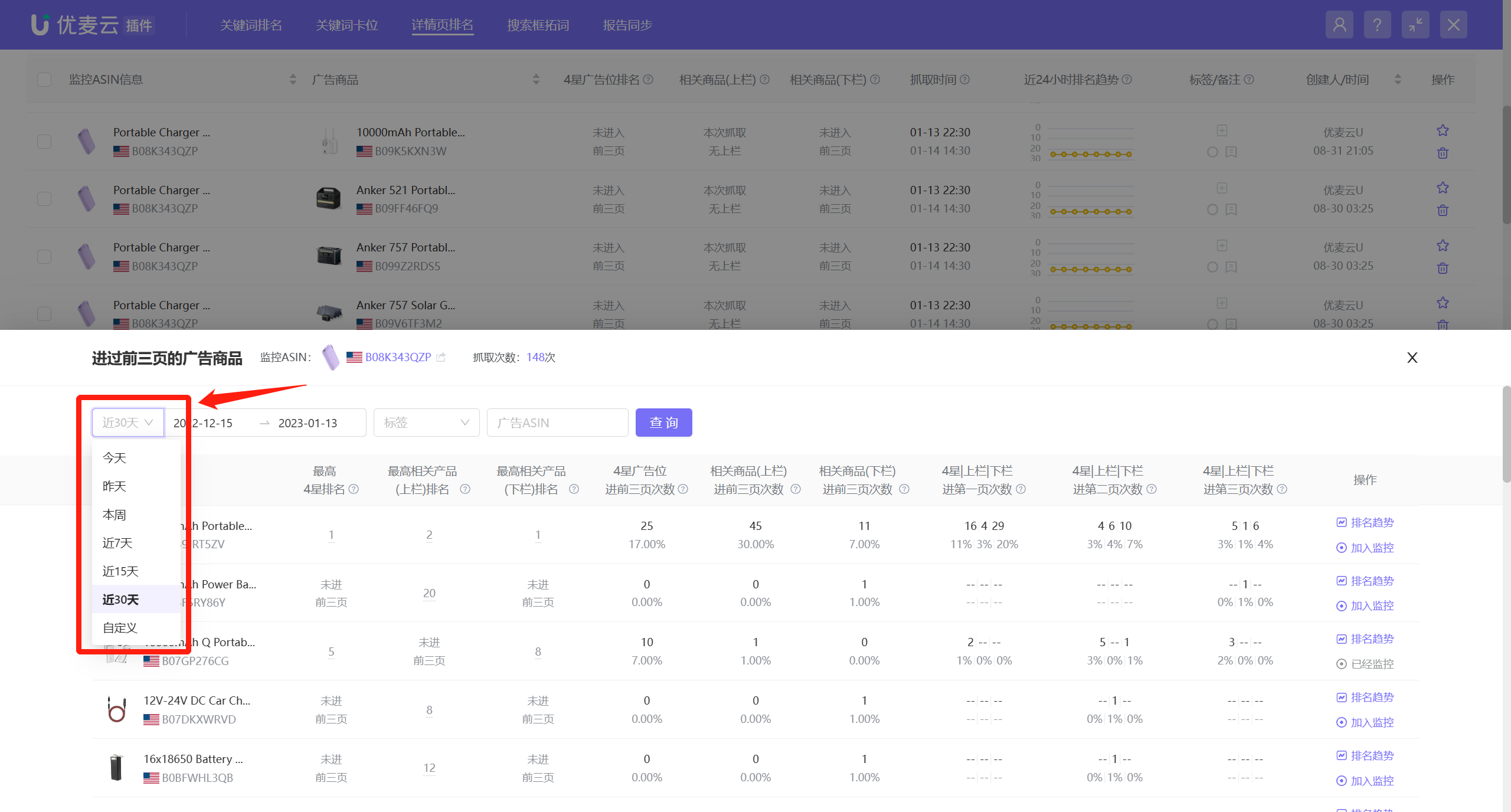
Enter the [Ad Products That Have Entered the Top 3 Pages] page,
The system displays data for the last 30 days by default, and you can also choose to view data for other time periods, up to the last 30 days;
 +
+
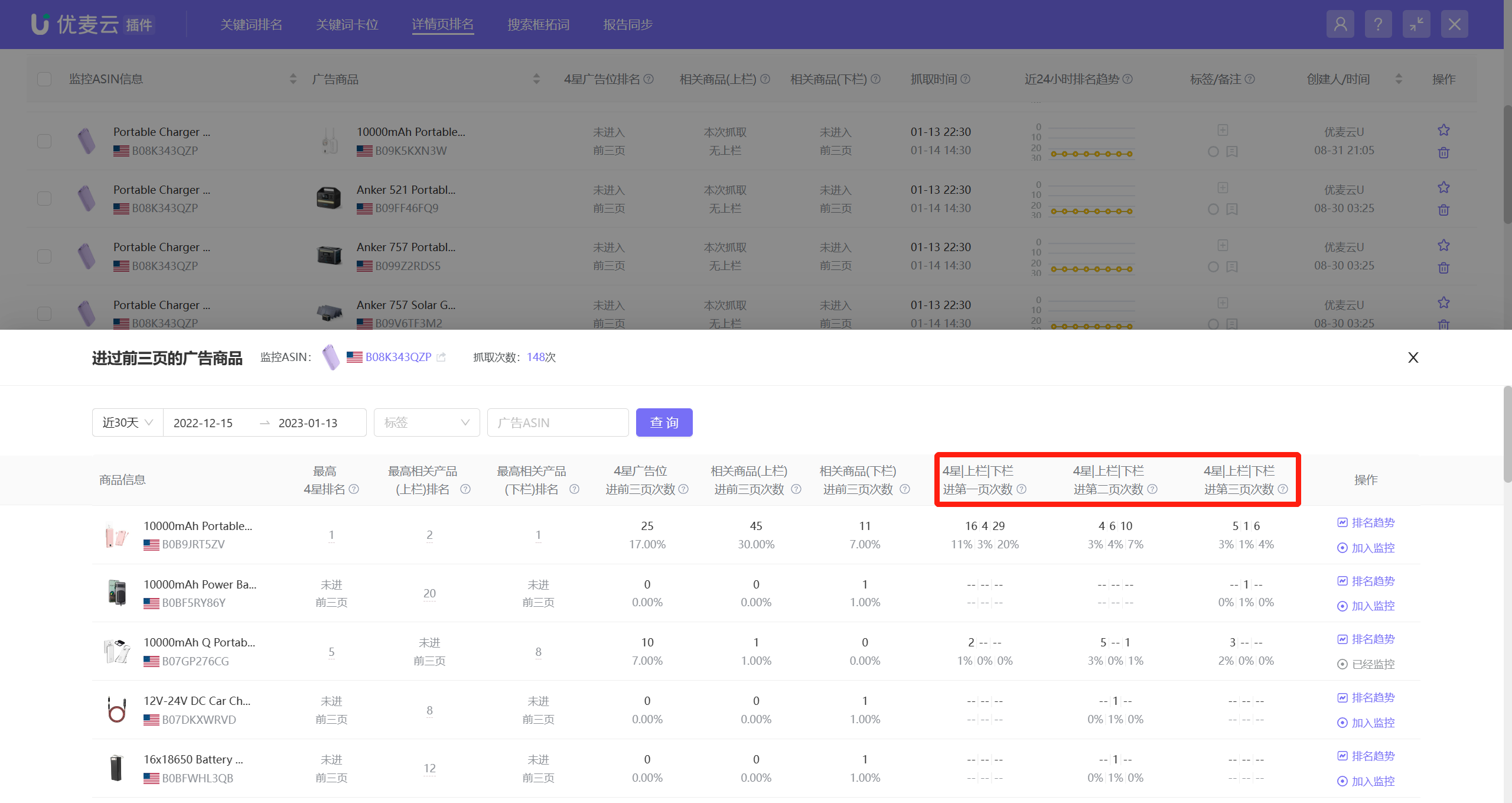
The data is divided into 3 categories: Highest Ranking in Different Ad Placements + Detailed Data of Times Entering Top 3 Pages + Detailed Data of Times Entering Each Page of Top 3 Pages
Highest Ranking in Different Ad Placements:
Refers to the highest ranking data of the ad product in different ad placements within the selected time period.
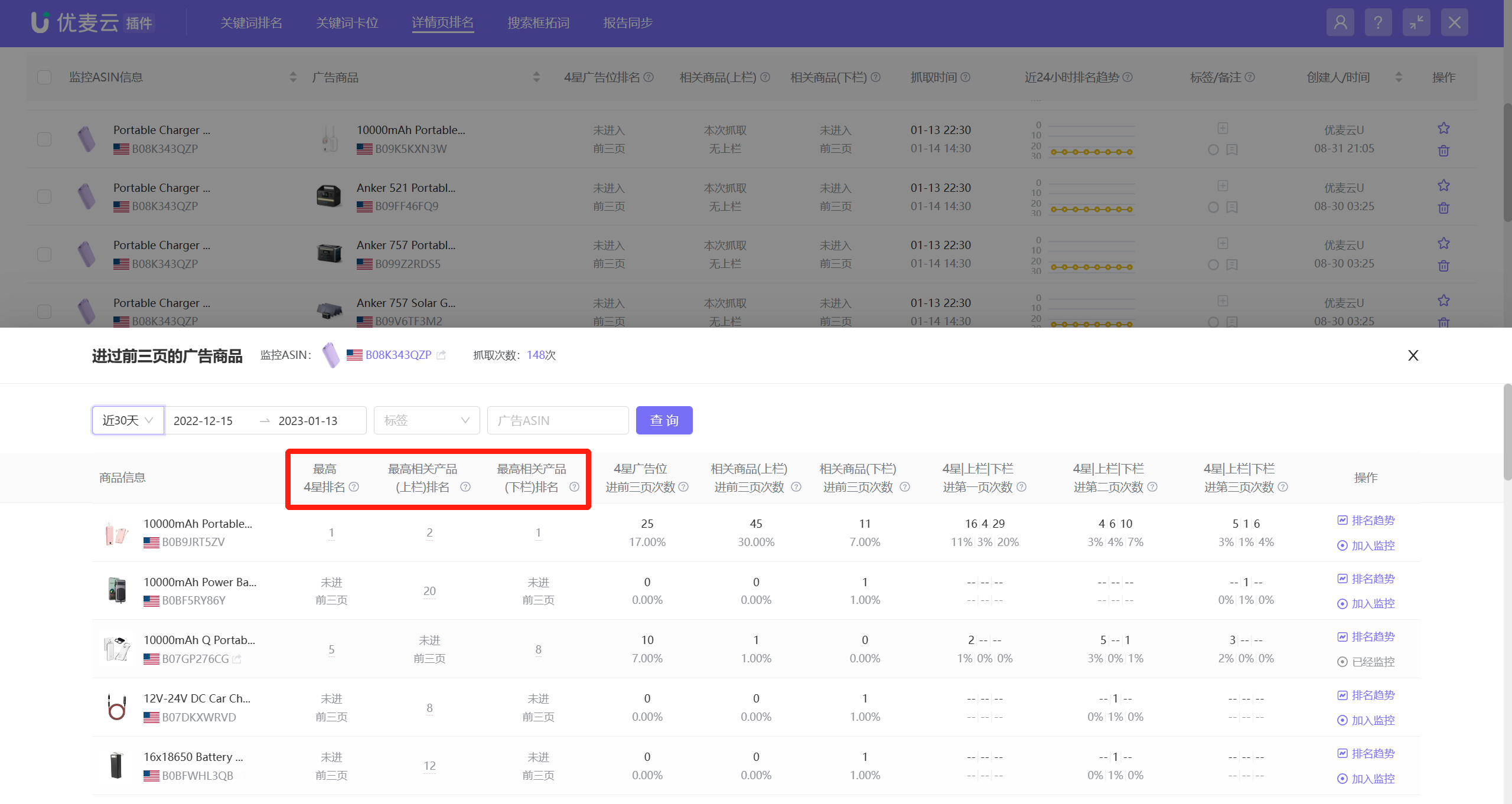 +
+
Not all time periods will have the highest ranking.
If there is a ranking, click the corresponding ranking number to further view the detailed information of surrounding competitor products at that time.
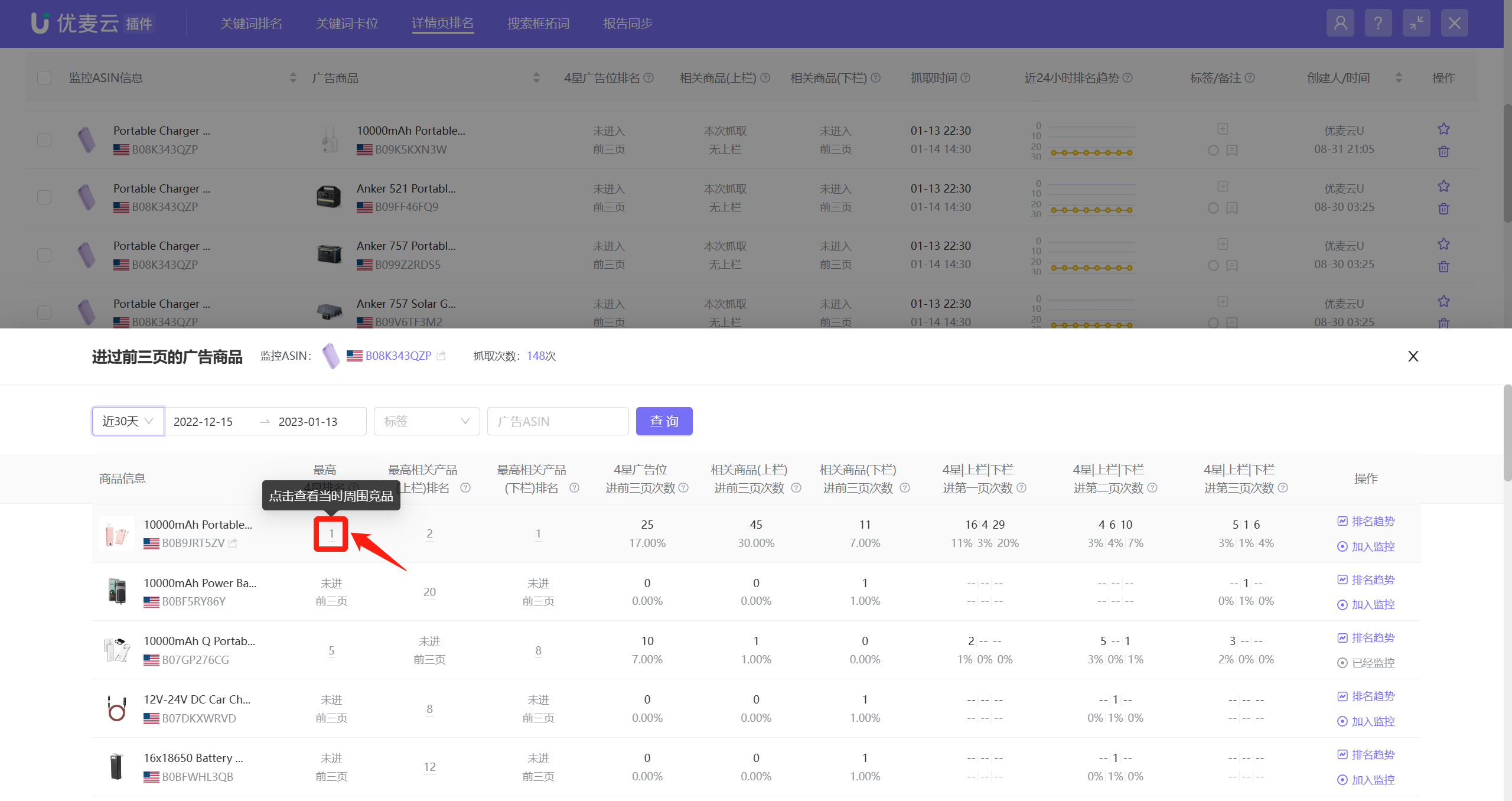 +
+
The viewing and analysis operations are consistent with the product information analysis of ranking trend nodes.
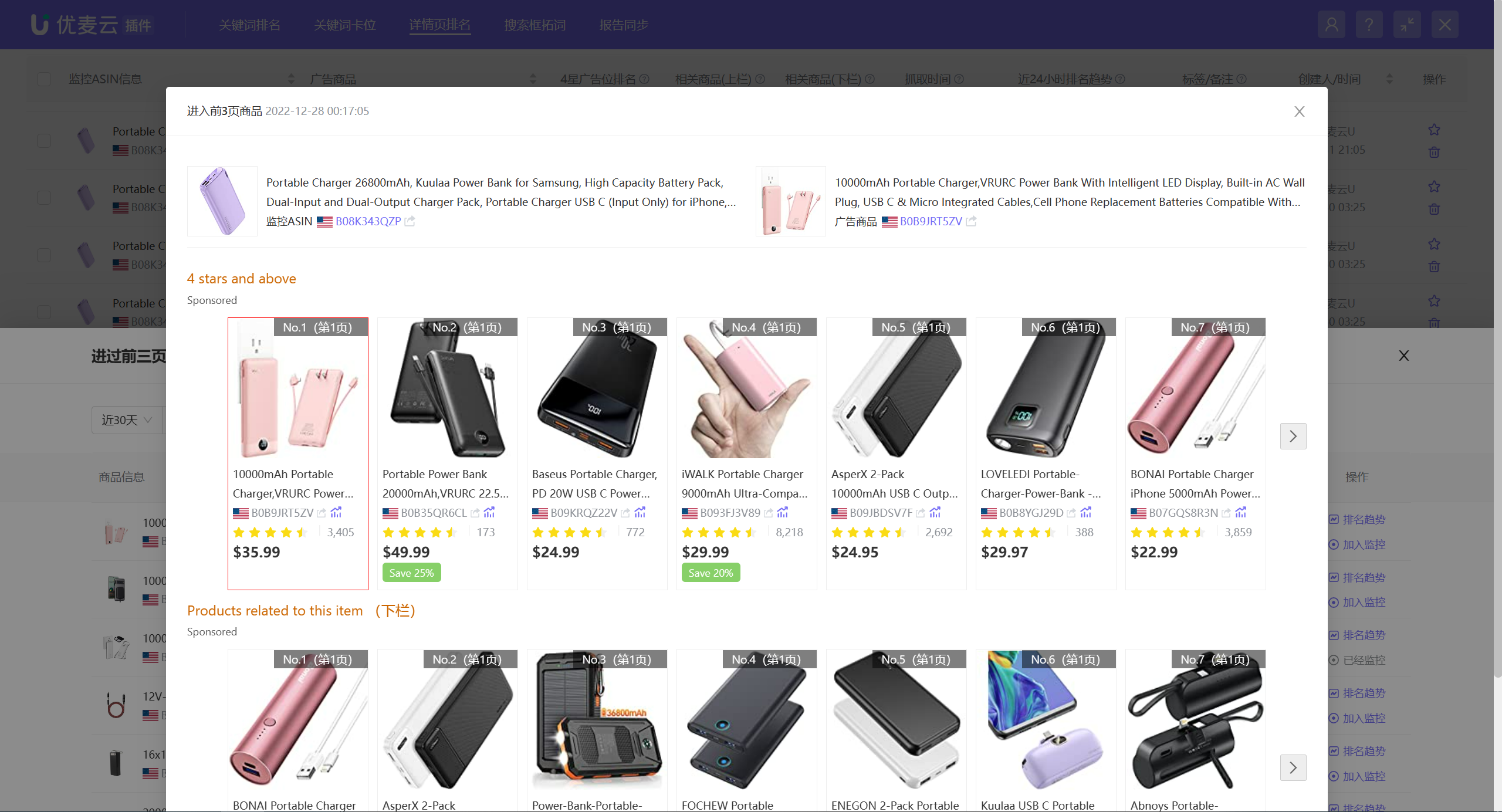 +
+
Detailed Data of Times Entering Top 3 Pages:
Refers to the number of times and proportion of times the ad product enters the top 3 pages of different ad placements.
Among them, the percentage below the ranking refers to the proportion of times the ad product enters the top 3 pages of the corresponding ad placement. In the case of more fetches, the value is closer to 1, indicating that the ad product and the monitored ASIN are more relevant.
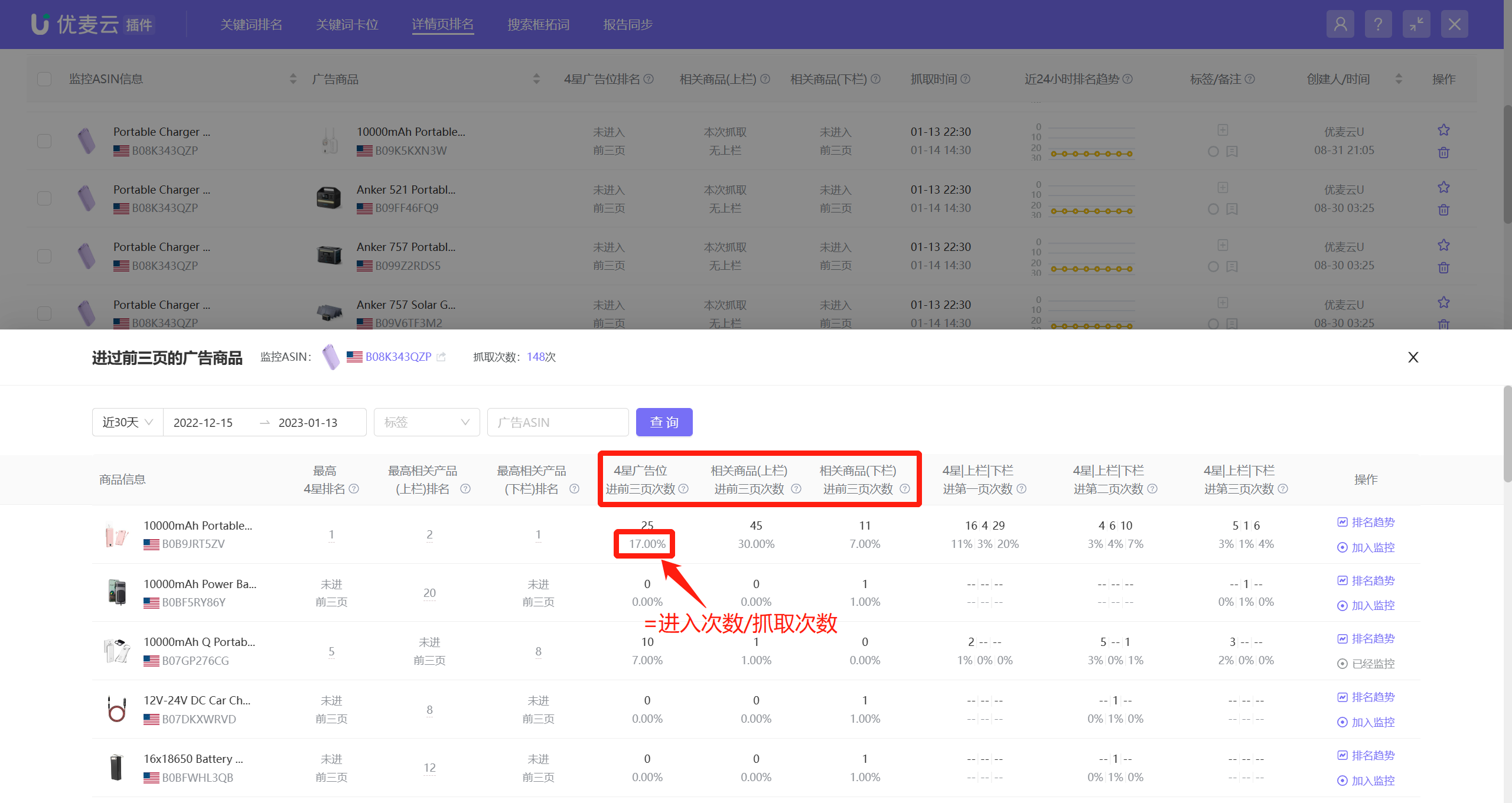 +
+
Detailed Data of Times Entering Each Page of Top 3 Pages:
Refers to the number of times and proportion of times the ad product enters each page of the top 3 pages of the corresponding ad placement.
The higher the ranking, the more related traffic and conversions can be obtained. Therefore, if you are running Sponsored Product Ads on detail pages, in the case of determining a high degree of relevance, you can adjust the ad bid based on the data of the number of times and proportion of times entering each page of the top 3 pages to push the ad product to the first page to obtain more traffic.
 +
+
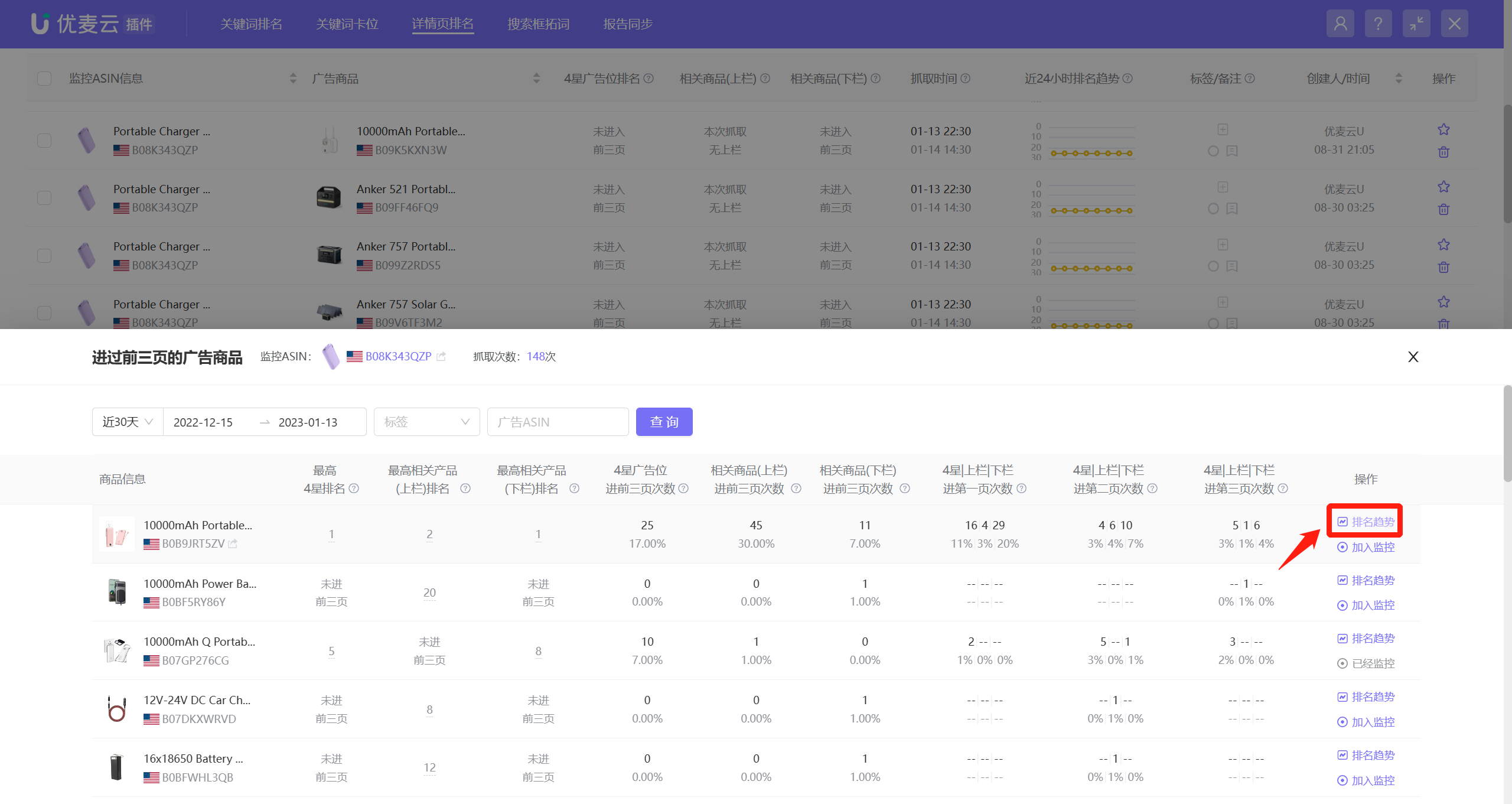
In addition to the analysis of the above three data points, you can also view the ranking trend of ad products here. The viewing method is consistent with the previous introduction.
Click [Ranking Trend] on the right to enter and view.
 +
+
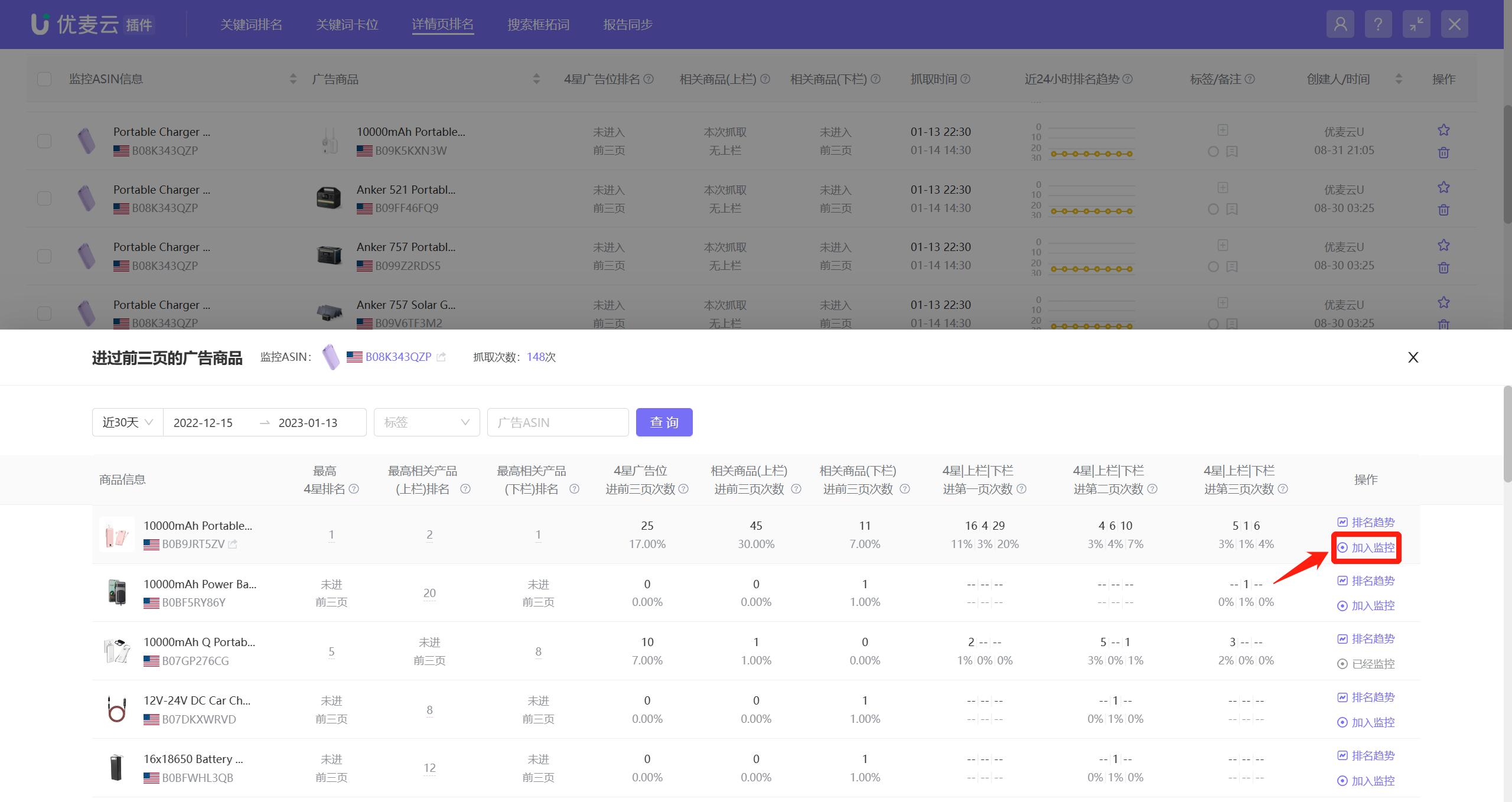
If you are very interested in a certain ad product, you can also choose to directly add it to monitoring to fetch subsequent ranking-related information.
Click [Add to Monitoring] to add with one click.
 +
+
3.3 Ad Product Dimension: Monitored ASINs That Have Entered the Top 3 Pages
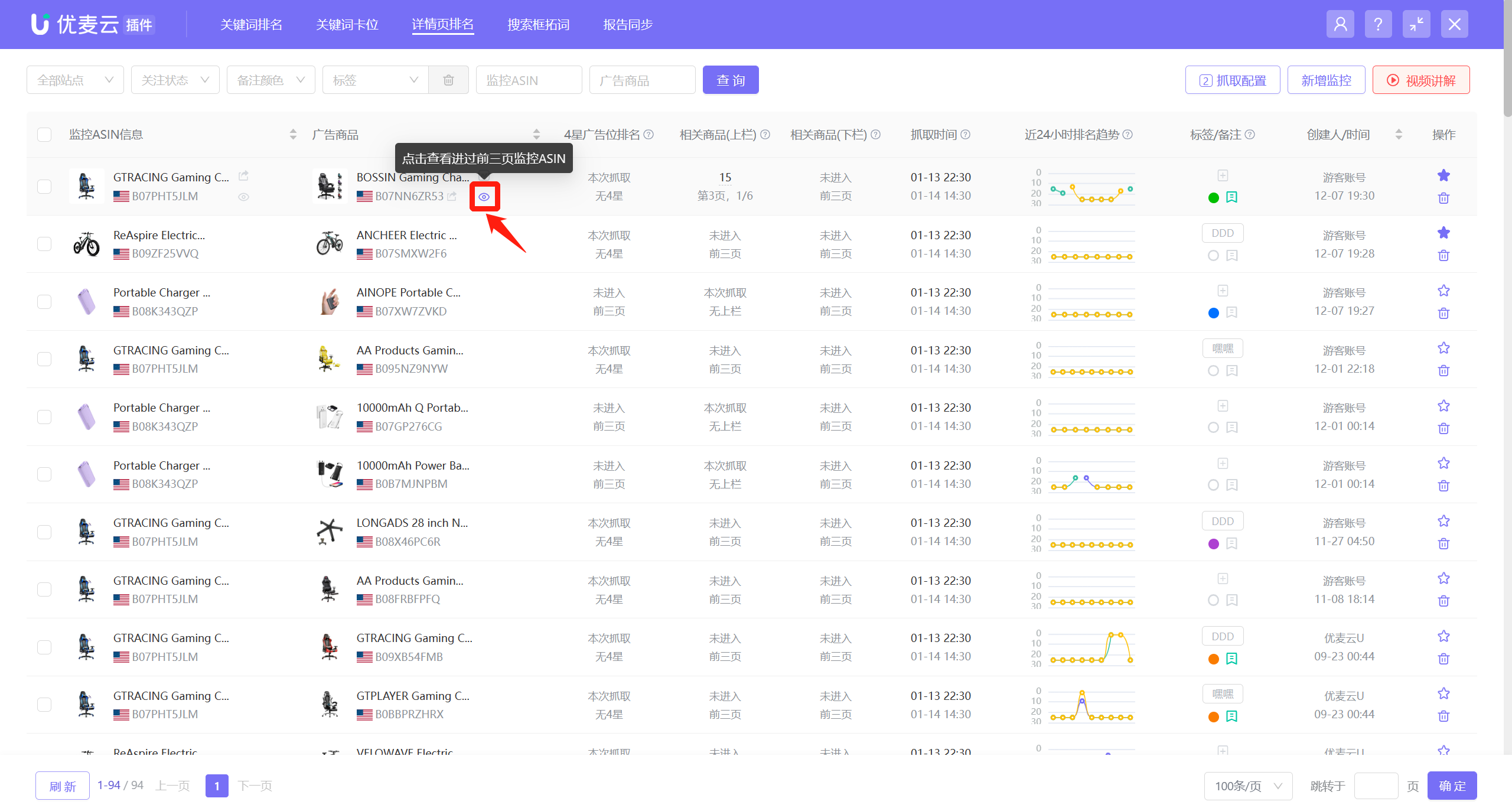
Starting from the ad product dimension, view which monitored ASINs have entered the top 3 pages under the ad product. You can use this data to judge whether your Sponsored Product Ads on detail pages are successful and whether you need to adjust ad bids, etc.
Find the corresponding monitored ad product, click the view icon on the right to enter the data page;
 +
+
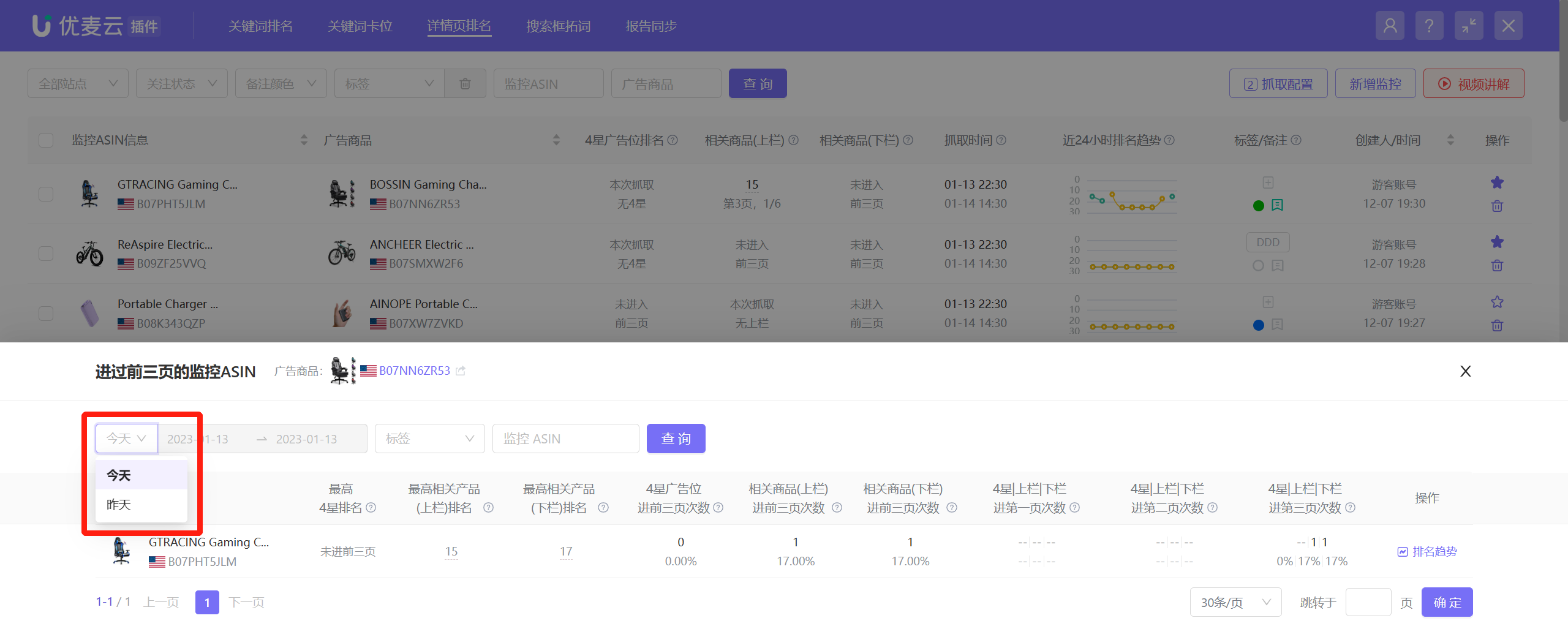
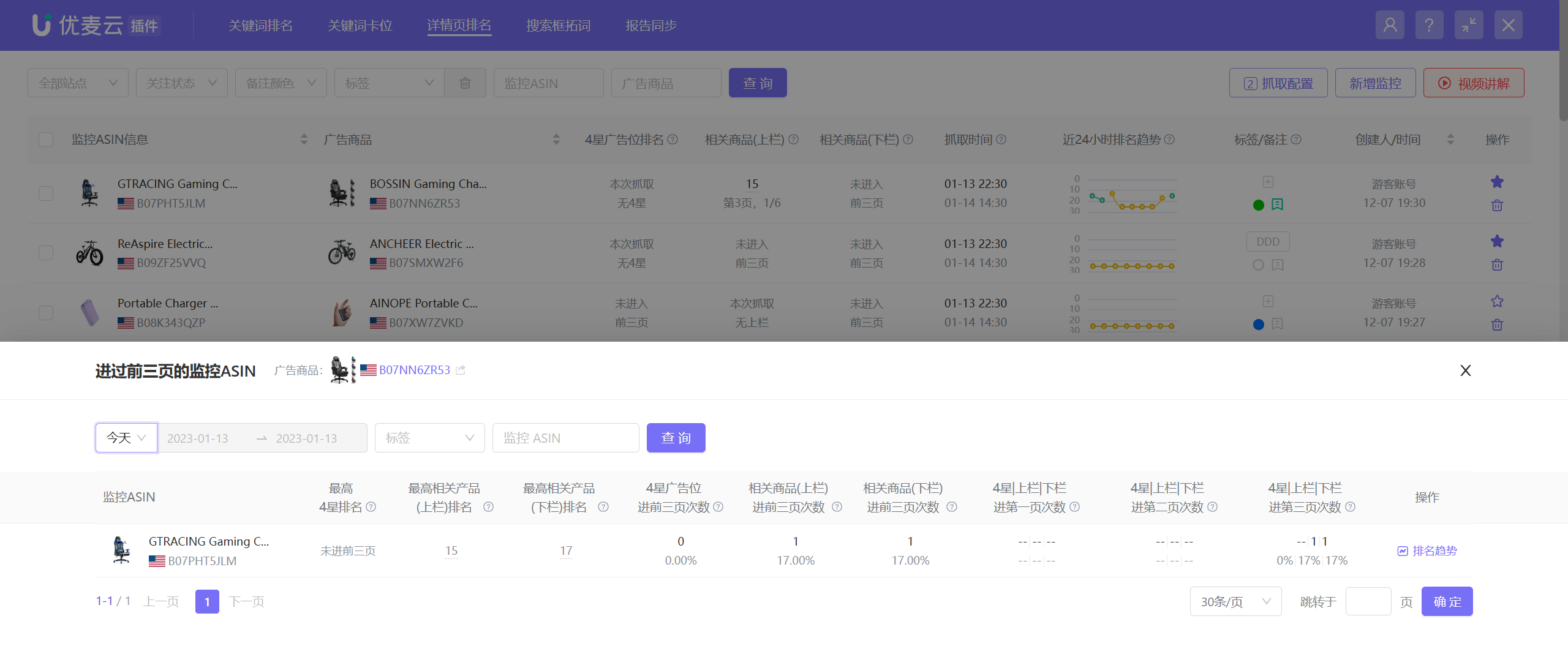
Enter the [Monitored ASINs That Have Entered the Top 3 Pages] page,
You can choose to view today's or yesterday's data;
 +
+
The data display and analysis method are basically consistent with Monitored ASIN Dimension: Ad Products That Have Entered the Top 3 Pages.
 +
+
